Narration Assistant ReTake - User Manual
Narration Assistant ReTake (“ReTake”) is a companion program that works with you and your recording software (DAW) and helps you prepare, mark-up, and narrate any manuscript, script or text document all in one window.
Think of ReTake as your narration assistant. Your recording software still does the actual recording. ReTake's job is to hold your script, remind you of your notes and characters, highlight any errors, and help you find your script position, all with one click. ReTake also assists you with manuscript preparation before you start reading.
Narrators, voice-over artists, podcast hosts, YouTube content creators, actors, authors, rights holders, e-learning creators, corporate trainers, documentary narrators, radio presenters, language teachers and students, movie industry, ADR dialogue recorders, Indie game developers, animation creators, audio guide narrators, script editors, producers. In fact anyone who needs to prepare or record scripted speech.
(This is the next planned development stage and not yet currently available - currently work in progress)
ReTake Live will allow two or more people to work together on the same narration session in real time anywhere in the world. A narrator can record from their local ReTake installation while a director, producer, or client views the same script remotely.
Imagine, once a session is started, participants join the shared session and see the same manuscript and current position. Changes in the script position are synchronised live, allowing participants to follow the narration as it progresses.
A director or producer can select a word, sentence, or section of the manuscript and send the narrator to that location. Retake commands can also be sent remotely, allowing the production team to work together without needing direct access to the narrator's DAW.
The narrator's ReTake installation remains connected to the local DAW and controls the recording and retake process. The collaboration connection synchronises the script, position, and production commands between participants.
In the future ReTake Live can operate over a local network or, where supported, over the internet.
Example 1: A narrator records in a studio booth while the producer follows the same script live in the control room. Both ReTake installations are connected over the studio’s local Wi-Fi, allowing the producer to select a line and send the narrator back for a retake.
Example 2: Two narrators in different countries record a duet using the same script in ReTake. Each sees the other’s position live, allowing them to follow the dialogue and record their parts together—even from thousands of miles apart.
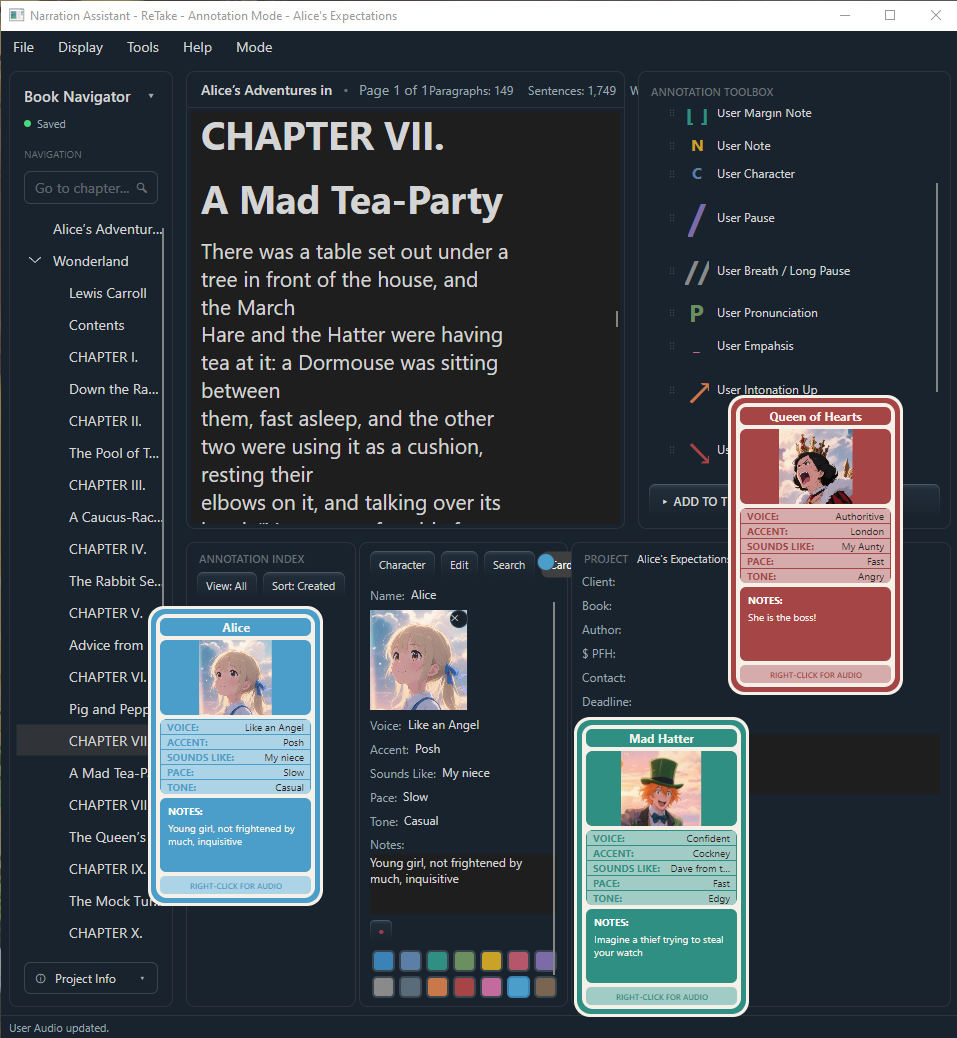
Annotation Mode - where you prepare a manuscript before recording: import it, mark it up with highlights, notes, audio notes, margin notes, pacing and pronunciation cues, and set up character information, etc,. Useful for authors and rights holders as well as narrators and voice-over artists who want to prepare the script before recording.
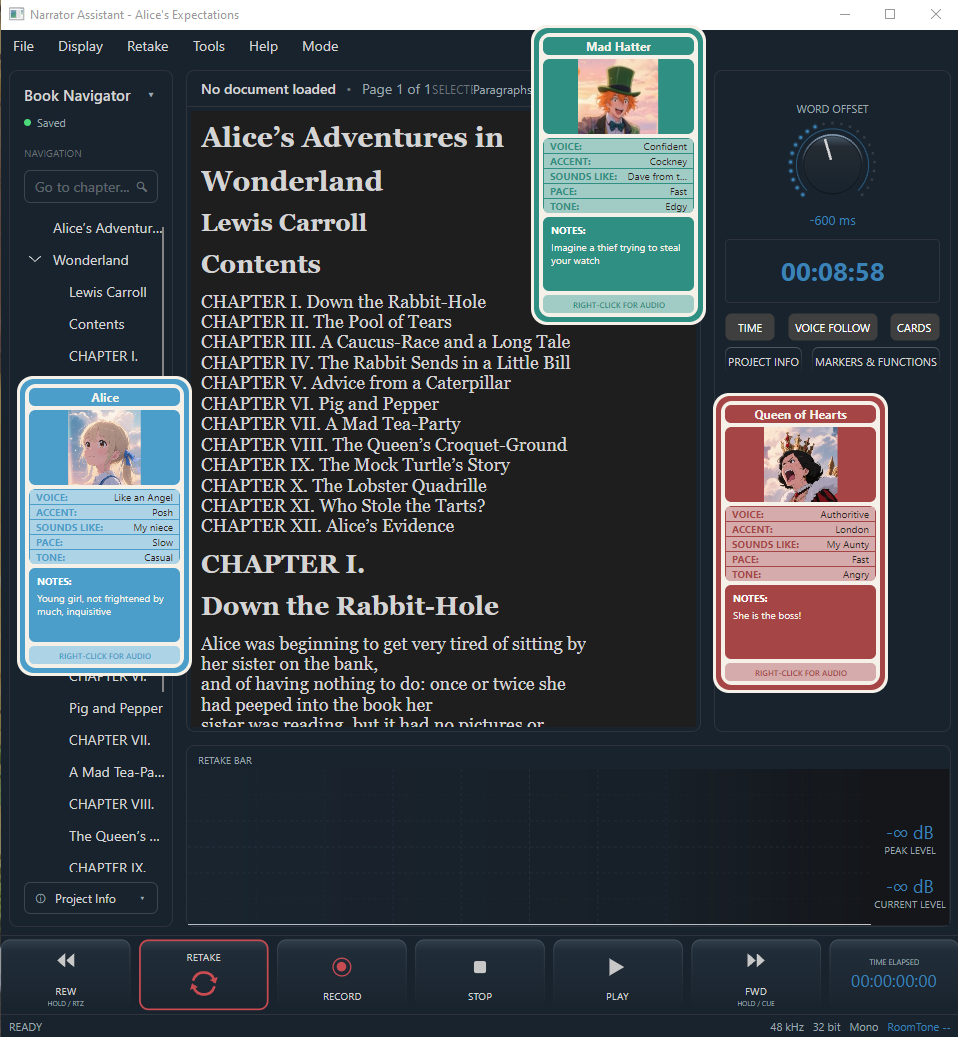
Narration Mode - The heart of ReTake, where you actually record the manuscript, using the transport bar (play, record, etc), level meters, and other useful functions to help you get the job done fast and efficiently.
Switching between the two modes does not lose any of your work - your project stays open and saved.
So, you have just one window combining everything you need in one place - no switching between windows, losing your place, losing focus of the most important part of the project - the script.
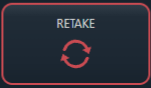
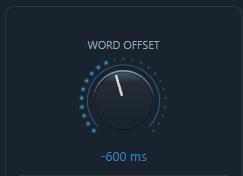
If you need to redo, or retake a line, simply press the RETAKE button. Essentially it starts a clever punch and roll sequence of events, using just one click. It will automatically rewind to the beginning of the current sentence, and start a punch and roll sequence from that position. There is no need to stop looking at your script or manually rewind your DAW or manually start your punch and roll sequence. ReTake does it all for you, with just one click. The exact position can be fine tuned by using the Word Offset dial.
When a sentence is too long and you don’t want to re-record the whole sentence, you can also use a similar process to start recording from any pre-recorded word in the script - Simply double-click on the word in the script. That’s it. It will start a punch and roll sequence from that word or just before that word. Your eyes will always be on the script. The exact position can be fine tuned by using the Word Offset dial.
*Punch and Roll is a common recording technique used by voice-over and audiobook narrators to quickly correct mistakes without fully stopping the recording session. When a mistake occurs, the narrator stops recording, moves back to a point just before the mistake, and starts recording again. The narrator then continues reading from that point, replacing the incorrect section with the new take. This allows mistakes to be corrected quickly while maintaining a natural flow and reducing the need to record an entire section again.
The ReTake workflow simplifies this into just one click. No manual rewind, no clicking on the DAW and losing focus of the script. It can even be a hands-free workflow by using an external MIDI device
If Studio One is not currently recording, or ReTake has not yet recognized enough of your reading to know where you are, Retake deliberately does nothing rather than guess at the wrong location.
ReTake needs to be set up just once before you use it for the first time (set and forget) after which, it will work in the background automatically. You won't need to configure it again. After installation, simply open your DAW as usual, open ReTake, drag and drop your script into Retake and hit record.
ReTake uses the Windows default recording device for its own microphone monitoring, including Room Tone, Threshold and Cooldown metering, Annotation Audio and Character Audio recording. Select your microphone or audio interface as the Default Input/Recording Device in Windows before using these features. ReTake does not provide a separate microphone selector. Its microphone capture operates independently of your DAW, so changing the Windows default input used by ReTake does not change your DAW’s audio device or recording-input settings. Your DAW continues to use the audio device and inputs configured within your DAW itself, as normal.
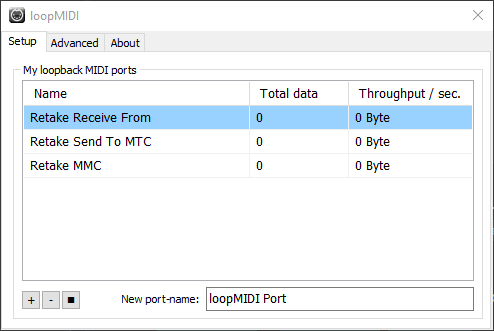
ReTake uses virtual midi ports to communicate with the DAW. In the instructions and guides, “loopMIDI” is used as the preferred example. Other virtual MIDI port software is available.
If ReTake does not play, record, retake, etc., then first check the following:
LoopMIDI provides the virtual MIDI connection used for ReTake/DAW transport communication and synchronisation. It starts/stops automatically every time you open/close Narration Mode. If it does not open;
ReTake Receive From
ReTake Send To MTC
ReTake MMC
*Leave loopMIDI running in the background while using ReTake with the DAW.
*Alternative virtual midi port software is available. Create the three MIDI ports, named exactly as above.
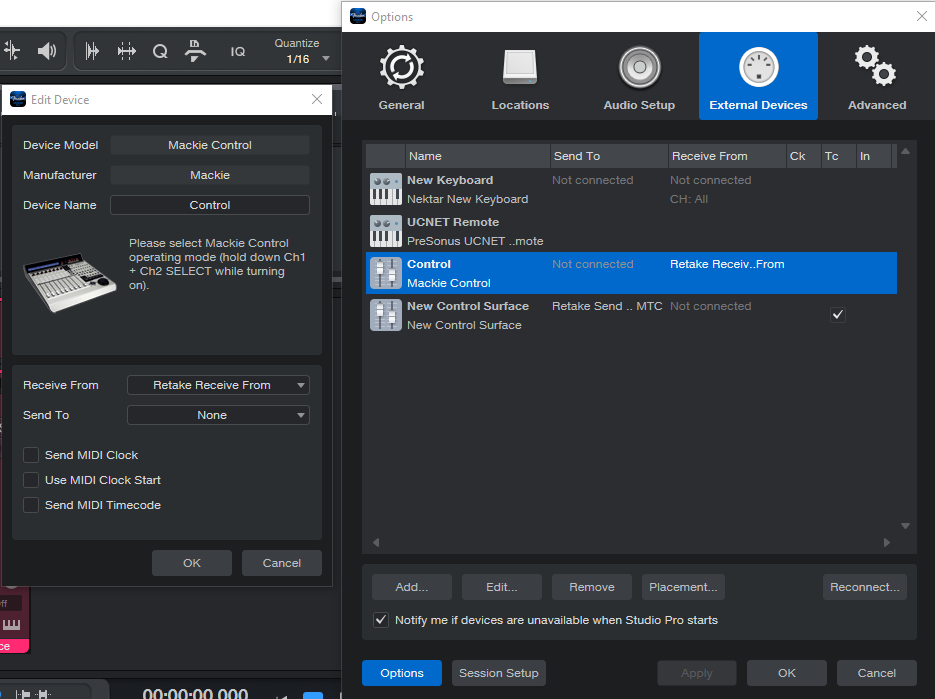
1. In Studio One/Pro, go to ‘Options’ via the "Studio One/Pro" menu at the top of the screen.
2. Select "Options - External Devices - Add.
3. Select "Mackie” - “Control" from the list of devices.
4. In the "Receive From" dropdown menu select "Retake Receive From" (leave Send To - ‘none’). Click OK
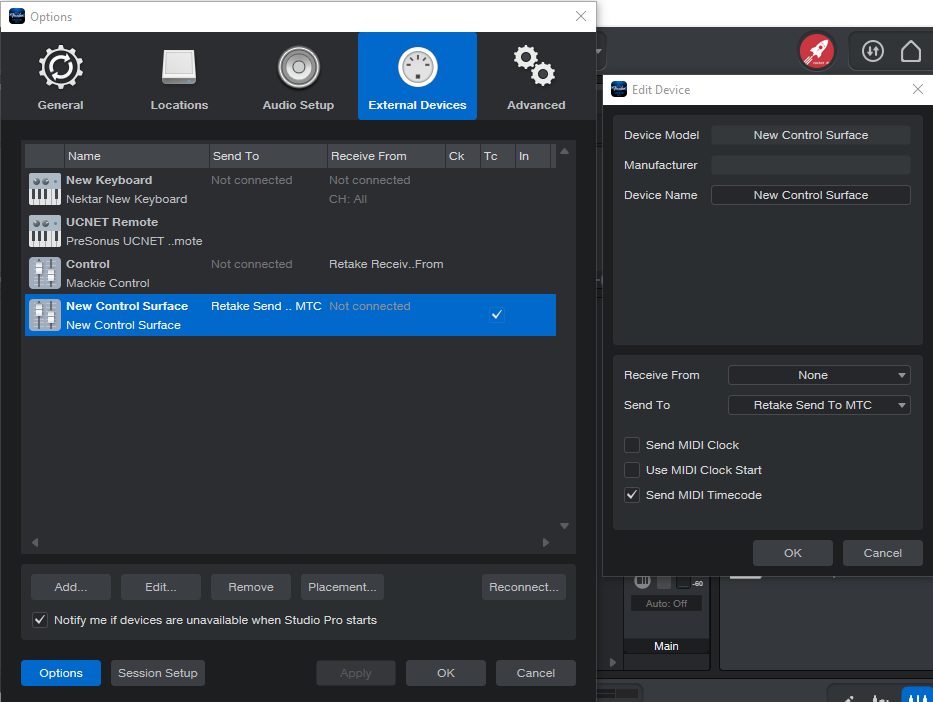
5. Add another device. (Studio One/Pro - Options - External Devices - Add) This time, select "New Control Surface".
6. In the "Send To" box select "Retake Send To MTC". (leave Receive From - ‘none’) Check the "Send Midi Timecode" box.
*Only Studio One Pro and Fender Studio Pro support this feature.
*If you can not see Retake Receive From, or Retake Send To MTC listed in the ‘Send To’ or ‘Receive From’ boxes, check you have installed and set-up loopMIDI or virtual MIDI ports as described in the previous step.
7. Click OK.
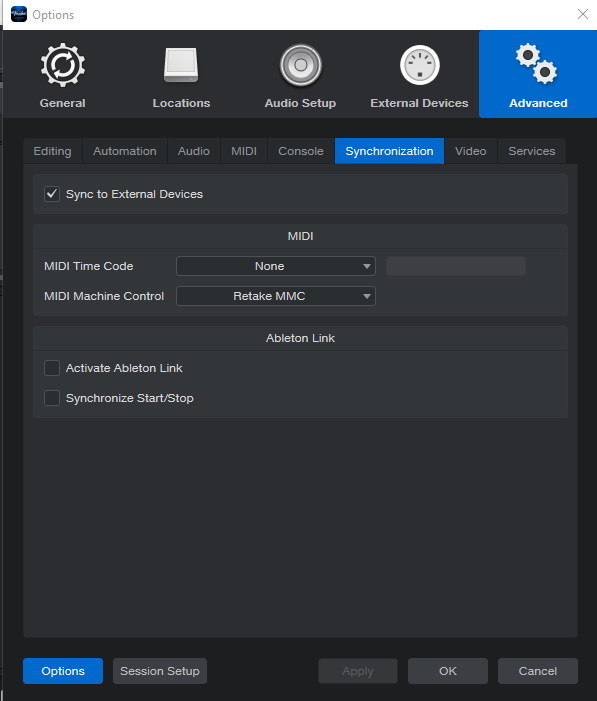
8. Go to Advanced - Synchronisation - MIDI Machine Control - “Retake MMC” “Sync to External Devices”. (leave Midi Time Code - ‘None’)
9. Click "OK" again to save and close.
C. Setting up the Custom Macros
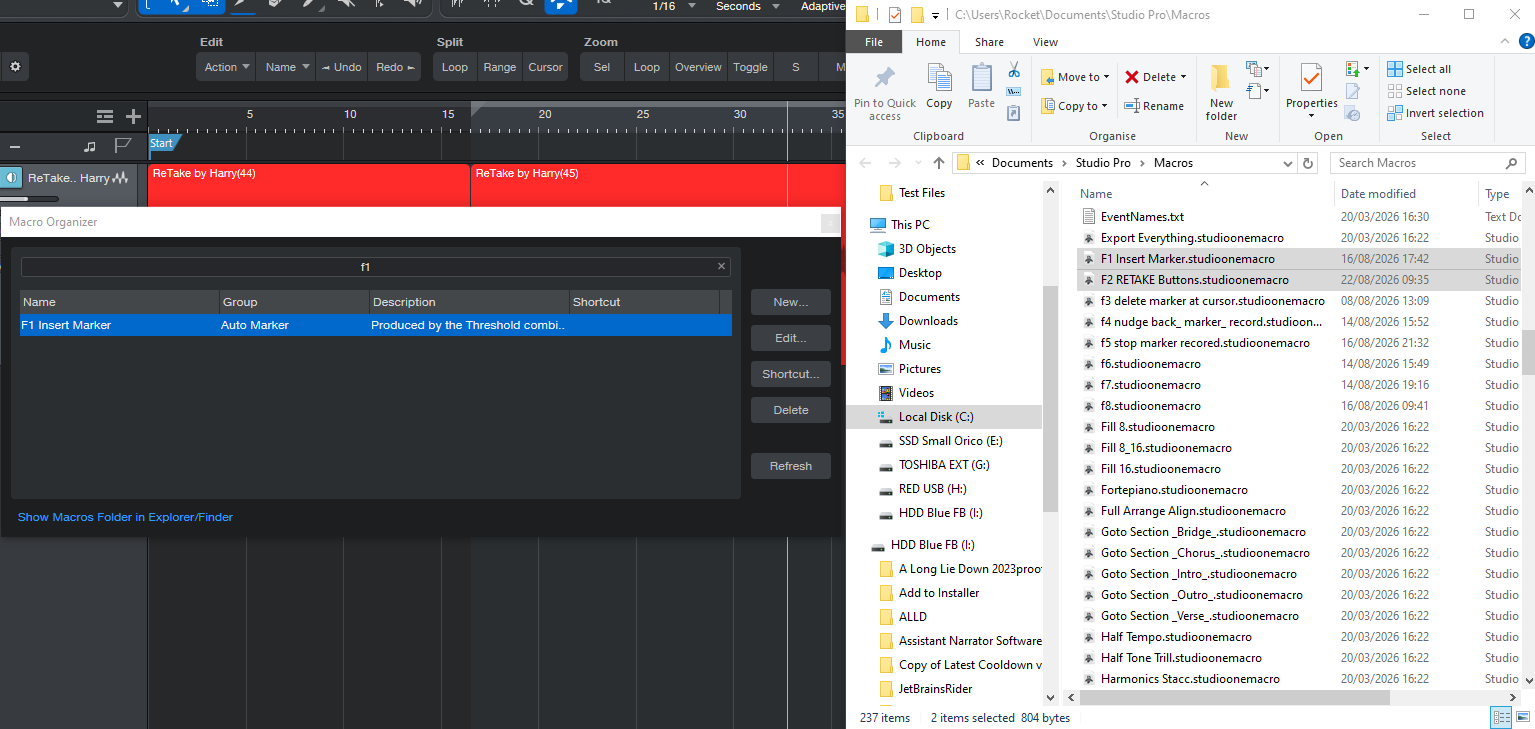
Install the custom macros from the installation folder into the DAW Macros folder. The default folder is found at: C:/Users/[username]/Documents/Studio Pro (or Studio One)/ Macros
Name of macros:
F1 Insert Marker.studioonemacro
F2 RETAKE Buttons.studioonemacro
Add the macros to Studio Macro Folder: Default location - C/Users/[username]/Documents/Studio Pro (or Studio One)/ Macros
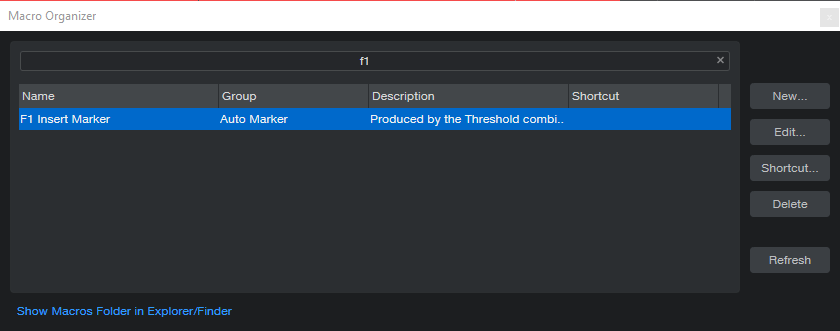
Or go to the folder from inside the DAW via the Macro Organizer
Simply copy and paste or drag and drop the macros into the folder.
To assign the Narration Assistant Macros in to Studio One/Pro, follow these instructions:
Assign "F1 Insert Marker" to F1 button:
1. In Studio One - Open the Console - select Show External Devices - select “Control”
2. Right click on the F1 button - select Assign Command
3. Search for the F1 Insert Marker macro you previously loaded in the Studio One/Pro Macros folder.
4. Select the F1 Insert Marker - select OK. It’s ready
Do the same for the F2 RETAKE Buttons macro
Assign "F2 RETAKE Buttons" to F2 button:
1. In Studio One - Open the Console - select Show External Devices - select “Control”
2. Right click on the F2 button - select Assign Command
3. Search for the F2 RETAKE Buttons macro you previously loaded in the Studio One/Pro Macros folder.
4. Select the F2 RETAKE Buttons - select OK. It’s ready
For your information, the Macro command chains are:
F1 command chain: Marker/Insert
F2 command chain: Marker/Insert - Transport/Preroll - Transport/Record - Transport/Preroll
You have now completed the set up of all MIDI and macros required by ReTake. This step only needs to be done once. The MIDI and macros will load automatically in the background every time you start the software.
_____________________________________________________________________________________
Narration Assistant ReTake is now ready to with Studio One/Pro.
ReTake uses your default microphone input. As such, the microphone input should automatically work as normal with your existing set up. If not, check the following in StudioOne/Pro:
3. Correct audio input device selected
4. Audio track is armed and ready to record.
5. Windows - Sound is correctly configured
A project is everything ReTake knows about one audiobook: your script, your characters, your notes and annotations, and even your project details (client, book title, author, deadline, and so on).
Every project is saved as its own file with the extension `.nap` (Narration Assistant Project). Think of it like a single folder that holds everything related to one audiobook.
The easiest method is to drag & drop your project .nap project file into the main document viewer.
Alternatively:
Choose File → Save Project, or Save as Project, press Ctrl+S, at any time to save your current progress. Saving is quick and safe — do it often, especially after adding a character, a note, or making other changes you'd hate to lose.
File → Save Project As... lets you save your current project under a new name or in a new location — useful for making a copy, or for saving your first-ever project if you haven't formally created one yet.
File → Close Project closes your current project, while keeping ReTake open. If you have unsaved changes, ReTake will ask whether you want to save them first —
Everything about your project is saved in one folder
You don't have to import a script before you start working. You can create a project, add characters, and fill in project details first, then import your script later — or never, if you're only using ReTake to organize characters and notes for a project you're recording another way. ReTake saves this kind of project perfectly normally.
ReTake does not automatically save your work as you go. Get into the habit of saving:
If you try to close a project (or ReTake) with unsaved changes, you'll be asked whether to save your project — so you always get a chance to save before anything is lost.
—
Your manuscript appears in the main document viewing area, ready to read, annotate, or narrate.
ReTake can currently import text documents in these formats:
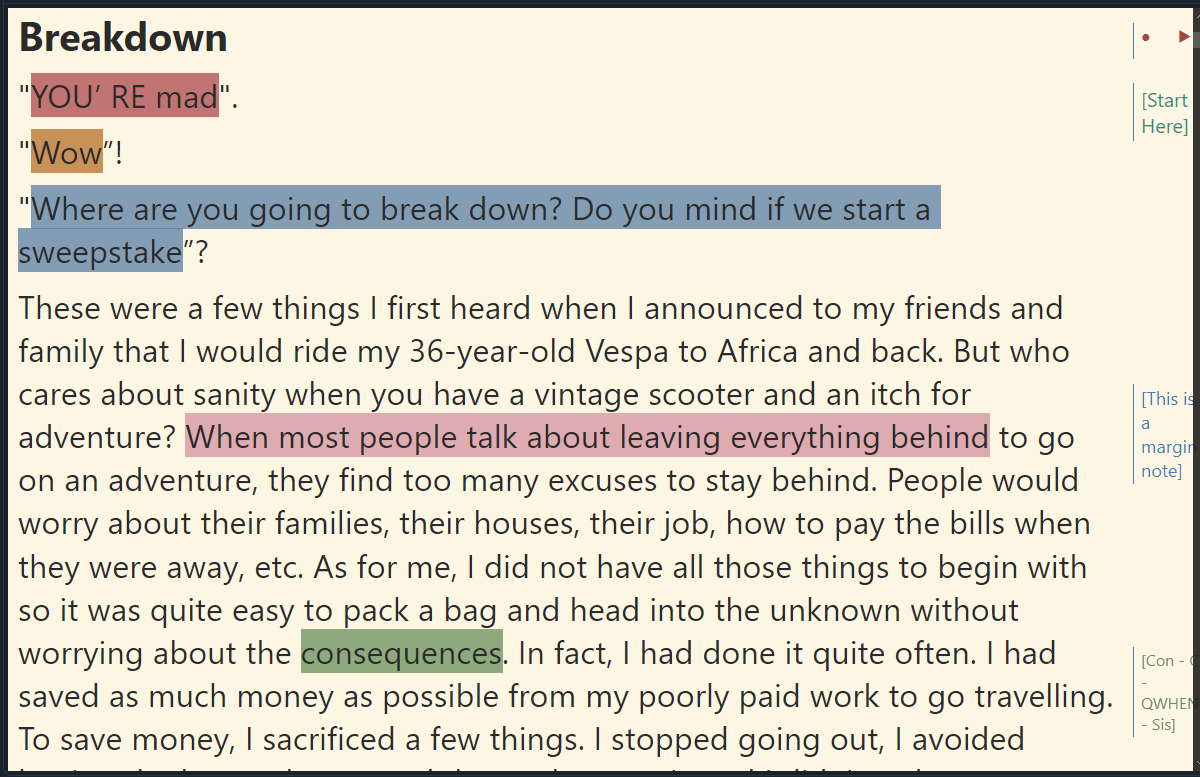
Once imported, your script displays as clean, readable text — chapters, headings, bold, italics, and underline, etc are all preserved from your original file. Your original file is never altered.
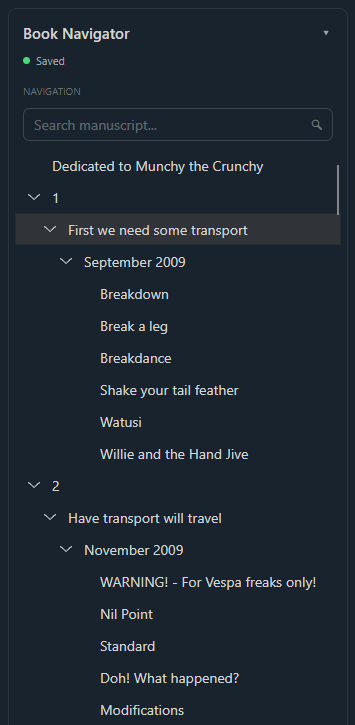
The navigation panel on the left side of the window lets you jump between sections of your script quickly, without scrolling through the whole thing.
Use the navigation panel to move between chapters and sections. Your place in the script is remembered when you change modes.
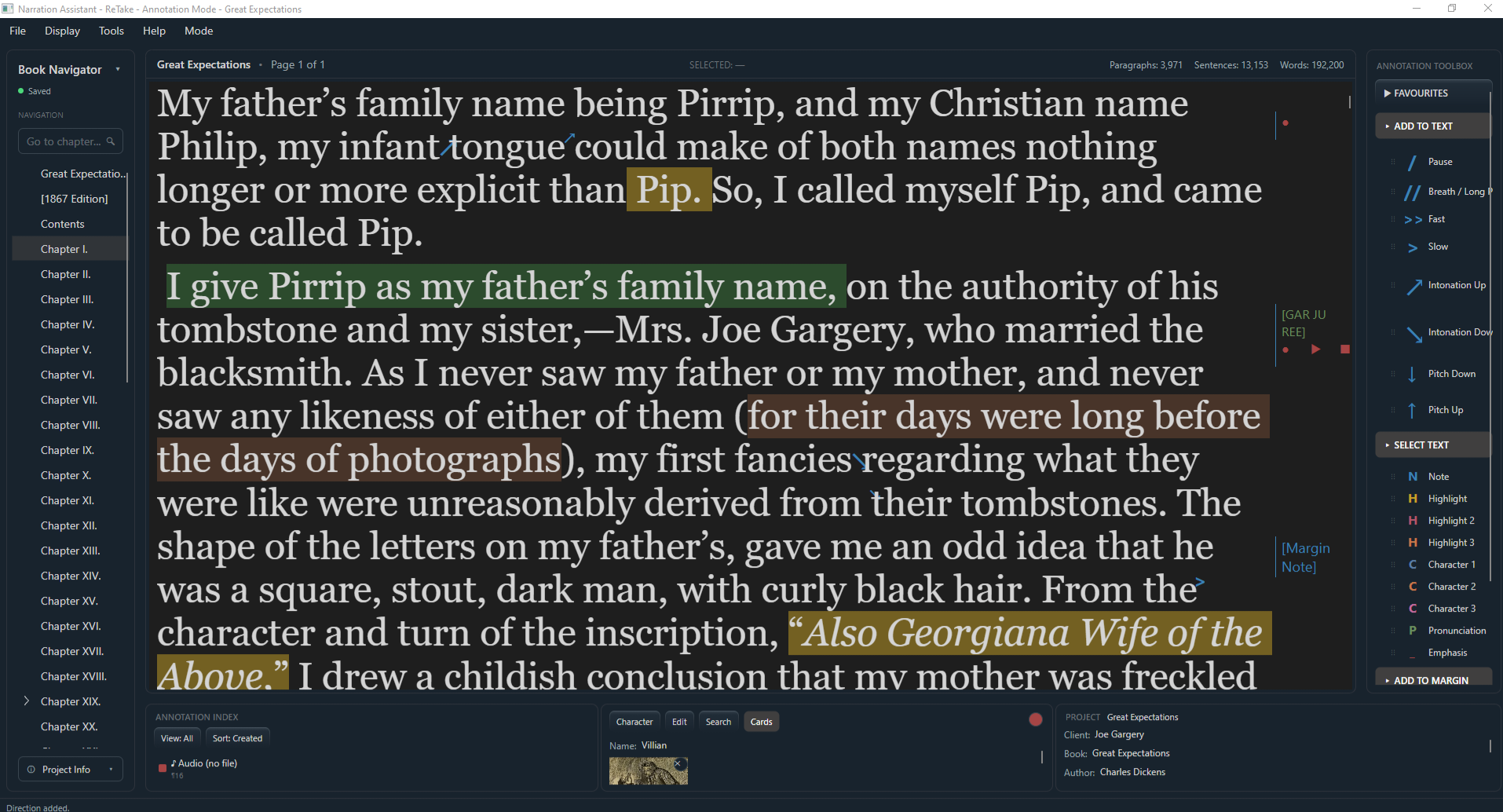
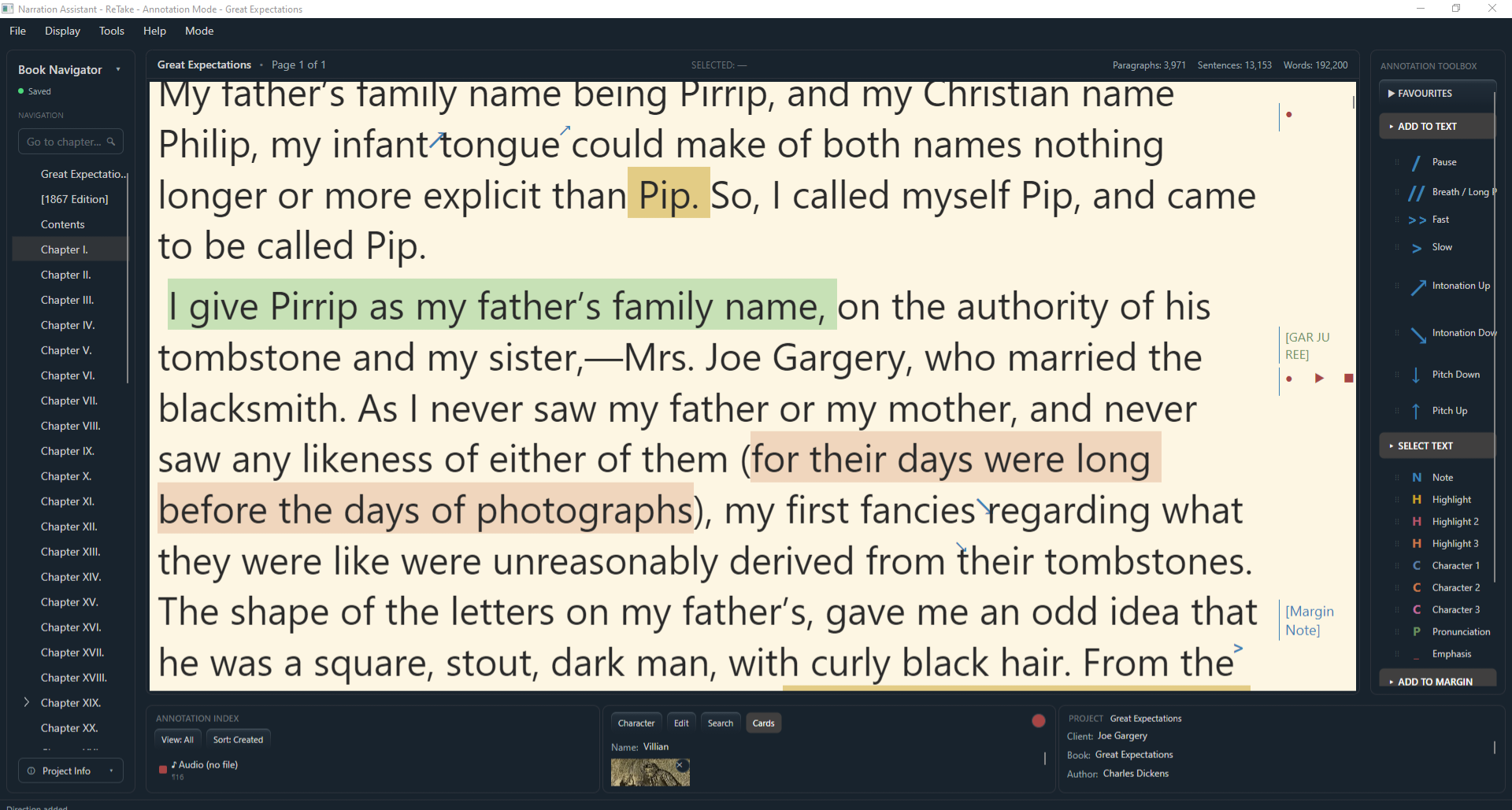
Daytime preset
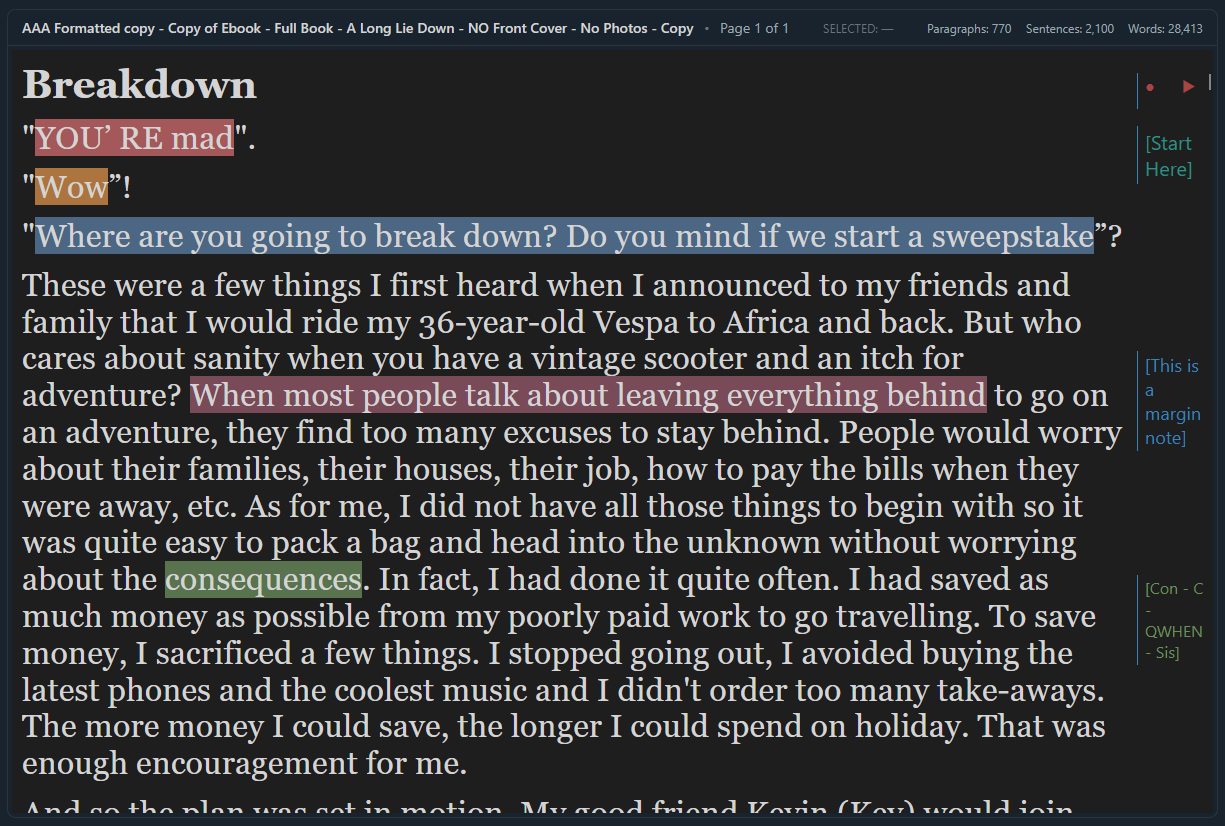
Studio preset
You can change how your script looks — background color, font, size, and more — without changing the words themselves. See [Chapter 9](#9-display-and-script-formatting) for full details.
—_______________
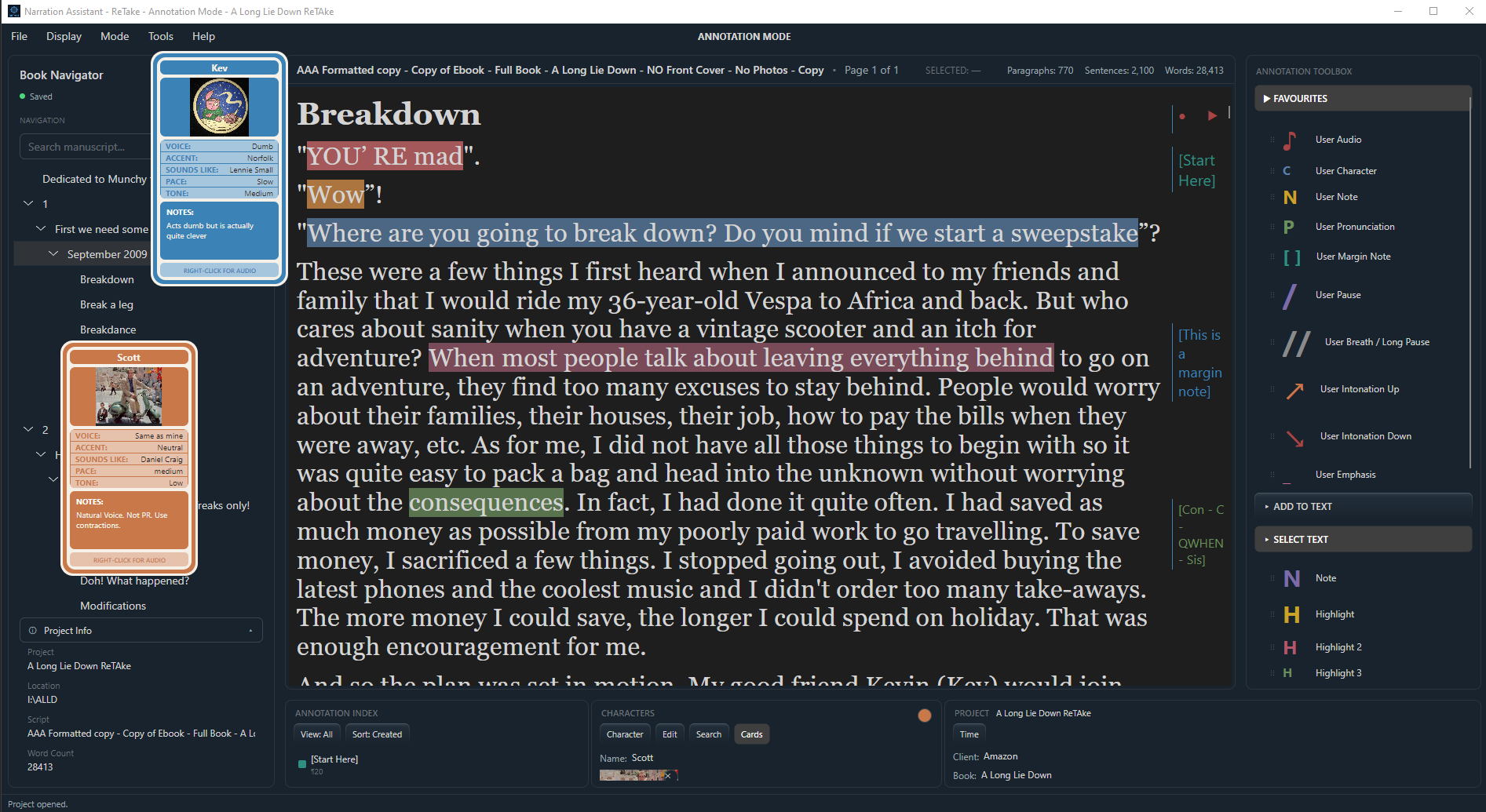
Annotation Mode is where you prepare your script before recording. It's your workspace for:
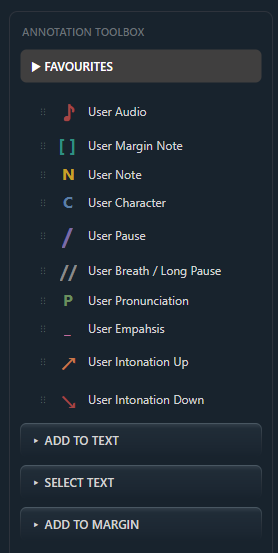
Along the right side is the Toolbox, a set of annotation markup tools you can apply to manuscript.
The Toolbox is your palette of annotation types. It's organized into categories:
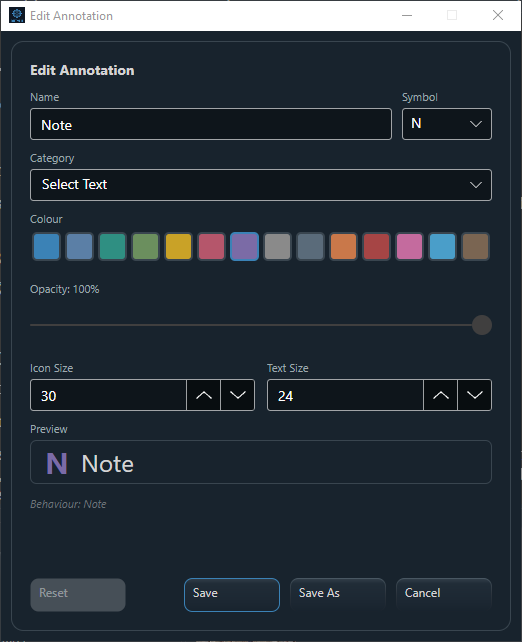
You can customize each Toolbox entry's color, symbol, and text size, reorder categories, and copy/paste entries to reuse in your setup.
Your annotation appears immediately in the script, and in the [Annotation Index](#annotation-index) (see below).
Here are just a few of the annotation types currently available in ReTake:
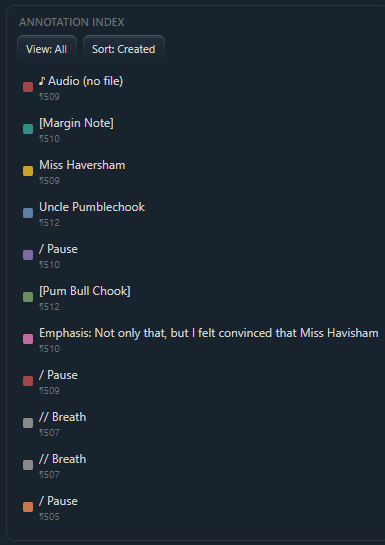
The Annotation Index panel lists every annotation in your current project in one place, so you can review everything you've marked up without scrolling through the whole script.
Annotations are shared between both modes — annotations you create in Annotation Mode will show when you switch to Narration Mode, and vice versa. You can only add and edit annotations in Annotation Mode. You can then view your annotations in Narration Mode.
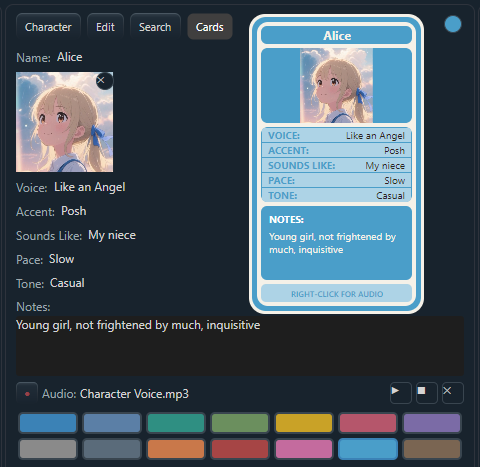
The Character Panel lets you create and manage the characters in your manuscript. Especially useful if there are lots of characters in the manuscript and if they appear infrequently. Add character names, images, and voice recordings, and keep character information organised alongside the script for quick reference while narrating.
Click into any field to edit it directly.
Add various descriptions for each character:
Pro Tip: Use the same colour to highlight the text where the character appears for a quick and easy referencing system.
*This is an automated feature. When you assign a colour to a character, a colour-coded Highlight annotation automatically appears in the “SELECT TEXT” category with the same name and colour. You can then quickly and easily use this annotation to highlight that character's lines or actions in the script.
Drag and drop a .png or .jpeg image file onto the character's panel to give them a reference picture.
This is recorded through your microphone and saved as part of your project, separately from your main narration recording (which happens in S1). It does not use or save in S1.
Click the Play button in the character's panel to hear their reference recording. Click the stop button (■) to stop playback.
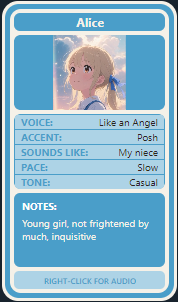
The audio can also be played directly from the Character Card. Right-click anywhere on the card and select play audio - select stop audio to stop the audio.
A Character Card is a small, floating window that shows a character's full profile at a glance — name, image, voice details, notes, and a Play/Stop function for their voice recording. It's designed to stay visible anywhere on your screen (even on top of other windows, if you pin it - right-click, select pin) so you can glance at it anytime while you narrate. Simply left-click/hold and drag it anywhere on your screen for convenient viewing.
Both Annotation Mode and Narration Mode have a CARDS button. This button controls whether your currently-open Character Cards are visible or hidden — it does not delete them or turn off anything about the character itself.
Switch the CARD display ON/OFF, by using the CARDS button. This opens/closes all cards automatically.
Character Cards are shared between both modes — a card you open in Annotation Mode stays open (and can be shown/hidden with CARDS) when you switch to Narration Mode, and vice versa. The CARDS button always means "show or hide every card for the current project," in both modes.
Narration Mode
Annotation Mode
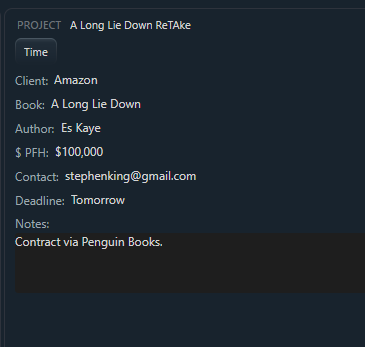
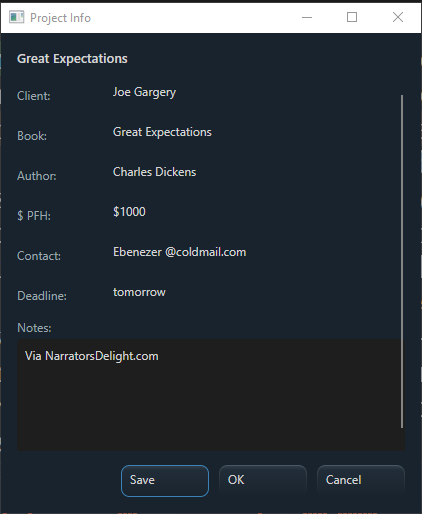
Every project has a set of details you can fill in.
You can edit these details in two places:
Both places show and edit the exact same information. If you change the Book title in one, it updates immediately in the other — there's no separate copy to keep in sync. You can use whichever is more convenient at the time.
—
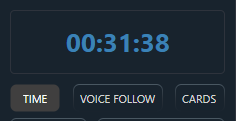
In the Tools menu in the Toolbar, select TIME.
A pop-up window will appear with the project timer.
This starts when you create and save a project. It can also be paused and reset.
The same project time can also be displayed in Narration Mode by using the TIME ON/OFF button.
The project time will be paused and stored whenever you close the project or ReTake itself.
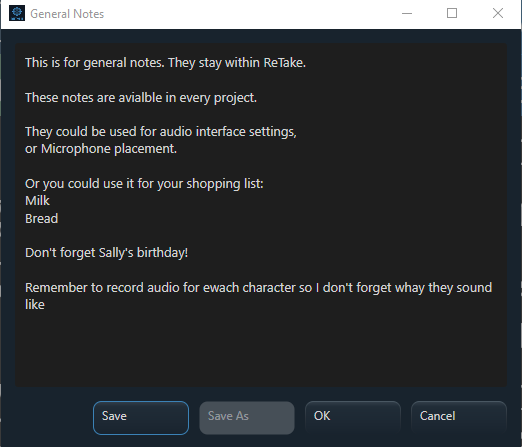
General Notes is a single, simple notepad built into ReTake — available from the Tools menu in either mode.
Use it for anything that doesn't belong to one specific project — general reminders, ideas, or scratch notes you want available no matter which project you're working on. Use it to recall mic placement details, audiocard settings, or even a friend's birthday!
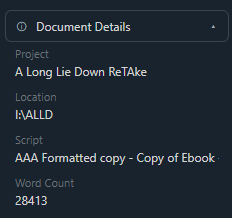
Extracts information from the text document. This is not editable.
Studio is the default script display — designed for comfortable reading in a dim recording booth.
Daytime is a lighter alternative display, better suited to a brighter room.
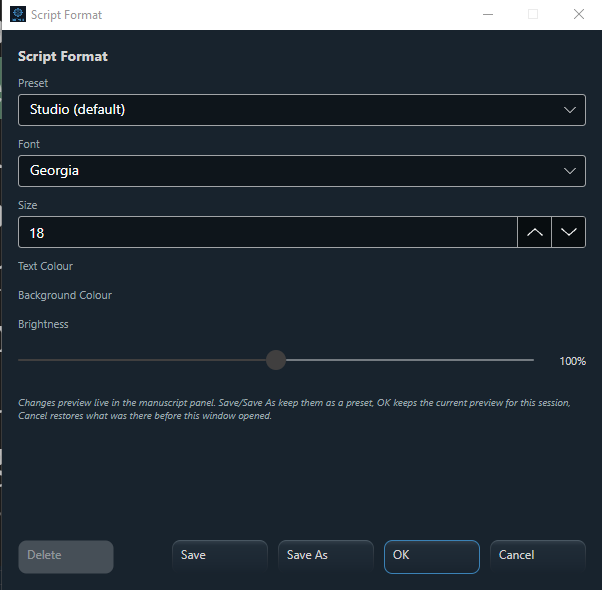
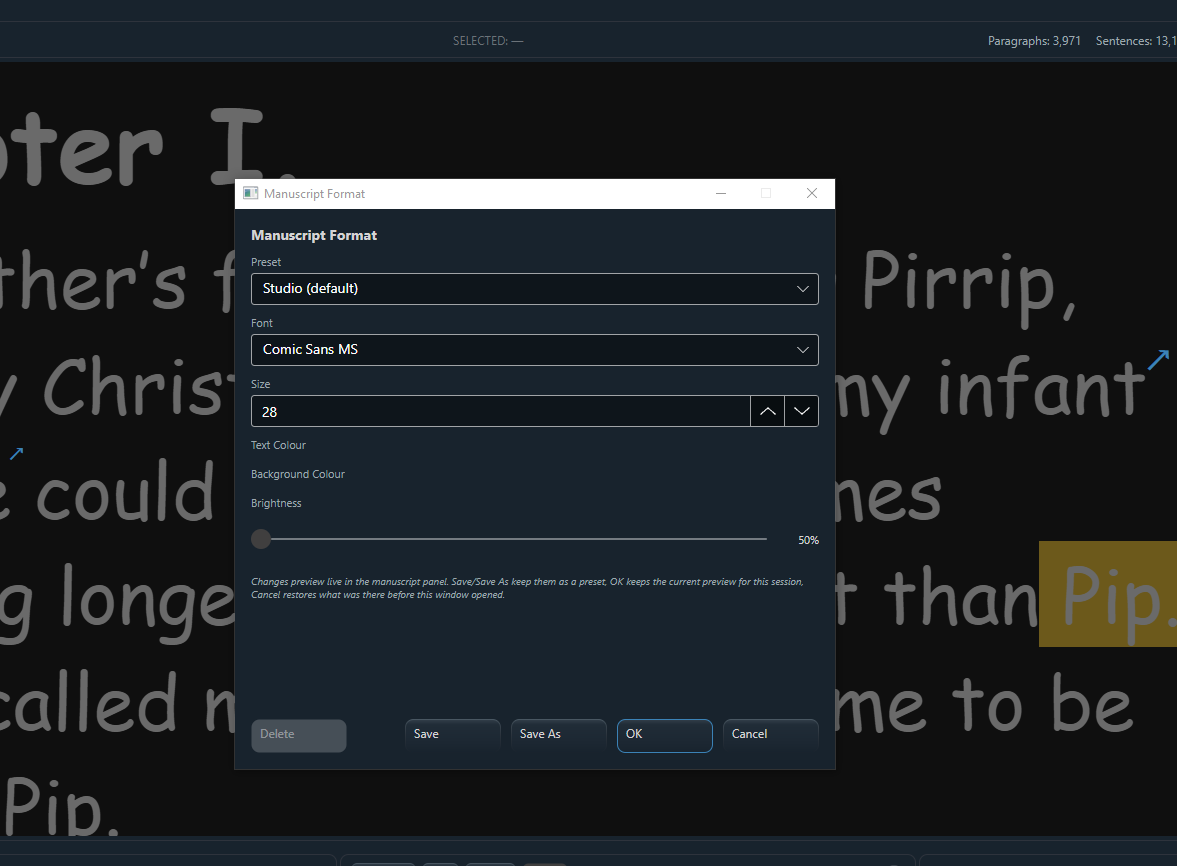
Beyond Studio and Daytime, you can create your own custom display presets — your own combination of font, size, colors, and brightness.
Your saved presets appear in the Display menu, ready to select any time.
The Format window lets you adjust font size and other display options live, so you can see the effect immediately before saving.
Use Delete in the Format window to remove a preset you no longer need.
If you delete the preset that's currently active, ReTake automatically falls back to the default Studio display — your script never ends up unstyled or broken. The same safe fallback applies if a project remembers a preset that's since been deleted, or if your saved preferences can't be read for some reason.
—
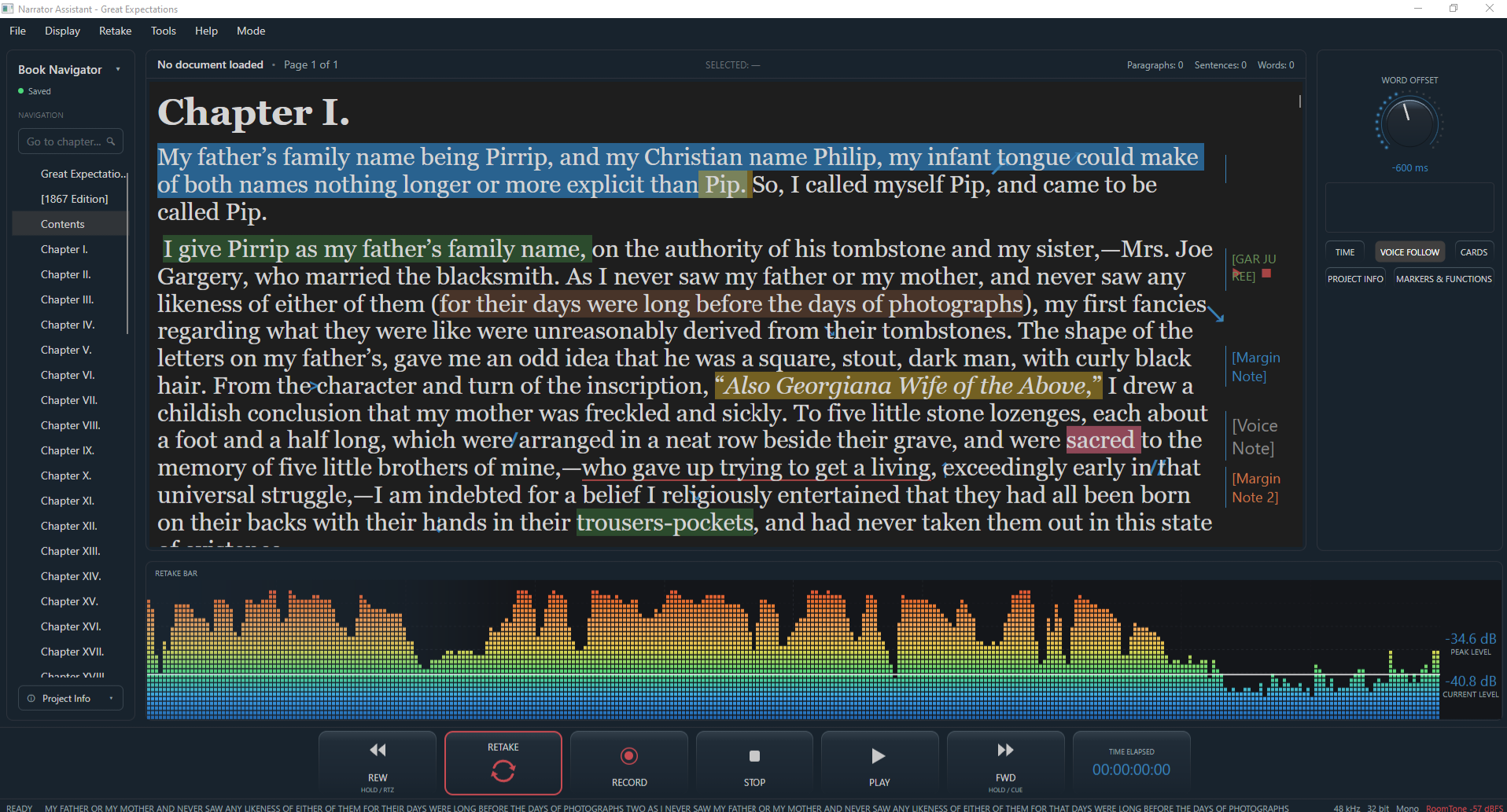
Narration Mode is your recording workspace — it keeps your script and narration tools together in one focused workspace. No switching windows, no losing your place—just stay with the script and narrate. All in one window.
Narration Mode includes a transport bar with the everyday recording controls:
Starts playback in Studio One.
Stops playback or recording.
Starts recording in Studio One.
Moves the playhead backward.
Moves the playhead forward.
A dedicated ReTake button triggers the ReTake sentence workflow described in the ReTake & Recovery section. While double-clicking a word in the script provides the ReTake word method.
Every transport action you take in ReTake is mirrored in the DAW — ReTake is essentially a remote control for the DAW's transport, so you rarely need to click back over to the DAW window during a normal recording session, maintaining focus on the script at all times all from one window
—
Your actual voice recording happens in Studio One Pro/Fender StudioPro, the same as it always has and does, not in ReTAke. ReTake's role during recording is to:
Use ReTake's transport controls (Play, Stop, Record, Rewind, Forward — see [Chapter 15](#15-transport-controls)) to control Studio One's recording, without needing to switch over to the Studio One window yourself.
ReTake can start, stop, and reposition Studio One's transport, and trigger a ReTake.
Studio One/ Fender Studio Pro performs the actual audio recording, storage, editing, and mixing, mastering, etc. ReTake does not record, store, or edit your audio files directly.
While recording, if you flub a word or sentence:
See [Chapter 12](#12-ReTake --recovery) for the full explanation.
—
This feature is made for fast, precise punch-and-roll recording.
When you make a mistake, simply hit the ReTake button. ReTake automatically returns to the beginning of the sentence and starts the punch-and-roll sequence - listen to the pre-roll, then recording starts automatically at the beginning of the sentence—or from the selected word.
No switching between script and DAW. No searching through the timeline. No manual positioning. No click, click, clicking. Just listen to the pre-roll, and ReTake takes care of the rest.
If you make a mistake during recording, just hit the RETAKE button and start again. No need to stop.
To re-record from the beginning of a sentence, use the RETAKE button to perform a sentence retake. There is no need to stop, lose focus, rewind and hit your punch and roll preset. Simply hit the RETAKE button and it will begin recording from the beginning of that sentence
To re-record from a specific word, double-click the word in the script while recording. ReTake starts the punch and roll process from that word.
Pro Tip. The retake process requires you to speak at least three words before it will recognize where you are.
You do not need to think about how ReTake finds the position — use the ReTake button for a sentence ReTake, or double-click the word you want to ReTake and keep speaking and keep recording.
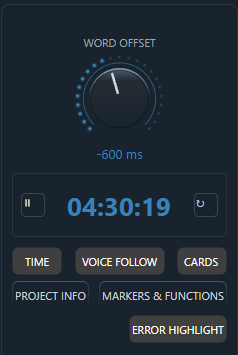
On the right side of Narration Mode is the Word Offset panel.
The Word Offset dial is a small timing adjustment (measured in milliseconds) that fine-tunes exactly where ReTake positions your DAW when you do a ReTake — useful if your ReTake consistently lands slightly too early or too late. You can adjust it using the dial in this panel to get it just right for your personal style; most narrators set it once and rarely touch it again.
If your retakes consistently land a fraction of a second too early or too late, nudge this dial slightly. Once it is set, most narrators will never need to touch it again.
*You may find that you may need to adjust this dial for different styles of material. Each user will also have a different rate of speech. The Word Offset dial will help you maintain the perfect position from which to recover from any errors you make while recording.
Below the Word Offset dial is
Shows or hides your project time display — a running clock of your total active time on each project. Turning it off just hides the numbers; the clock keeps ticking. There is also a pause/play button , as well as a reset button.
Below the dial and clock, you will find a panel with six buttons.
Turns the live script/highlight/auto-scroll ON/OFF — see [Chapter 13](#13-voice-follow) for the full explanation. Turning it off only hides the visual highlight; it doesn't disable anything else.
When turned on, ReTake automatically highlights and scrolls to the matching words in your manuscript, so you never lose your place. Similar to an autocue, or teleprompter. This uses local, on-device speech recognition only - nothing is sent over the internet or used or processed by A.I.
Voice Follow does what it says, it follows your voice as you narrate and automatically highlights and scrolls the script to keep up with where you are — so you never lose your place, even if you look away from the screen for a moment or stop speaking. If you stop speaking, ReTake stops scrolling. If you speak faster, ReTake scrolls faster.
Use the VOICE FOLLOW button in the Word Offset panel (Narration Mode) to turn the highlight/scroll on or off at any time.
When Voice Follow is on, the sentence you're currently reading is highlighted, and the script scrolls automatically to always keep it in view.
Speech recognition is technology that converts spoken words into text it can compare against your script. ReTake uses this only to track your reading position — it does not save a transcript of what you say, does not use any internet connection, does not use A.I. and it's separate from your actual voice recording in Studio One.
Shows or hides all your Character Cards for this project — see [Chapter 6](#character-cards).
Opens (or hides) the Project Info window — see [Chapter 7](#7-project-information).
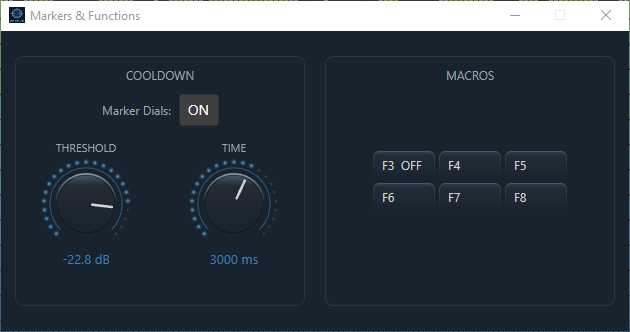
Macros and the Cooldown Feature
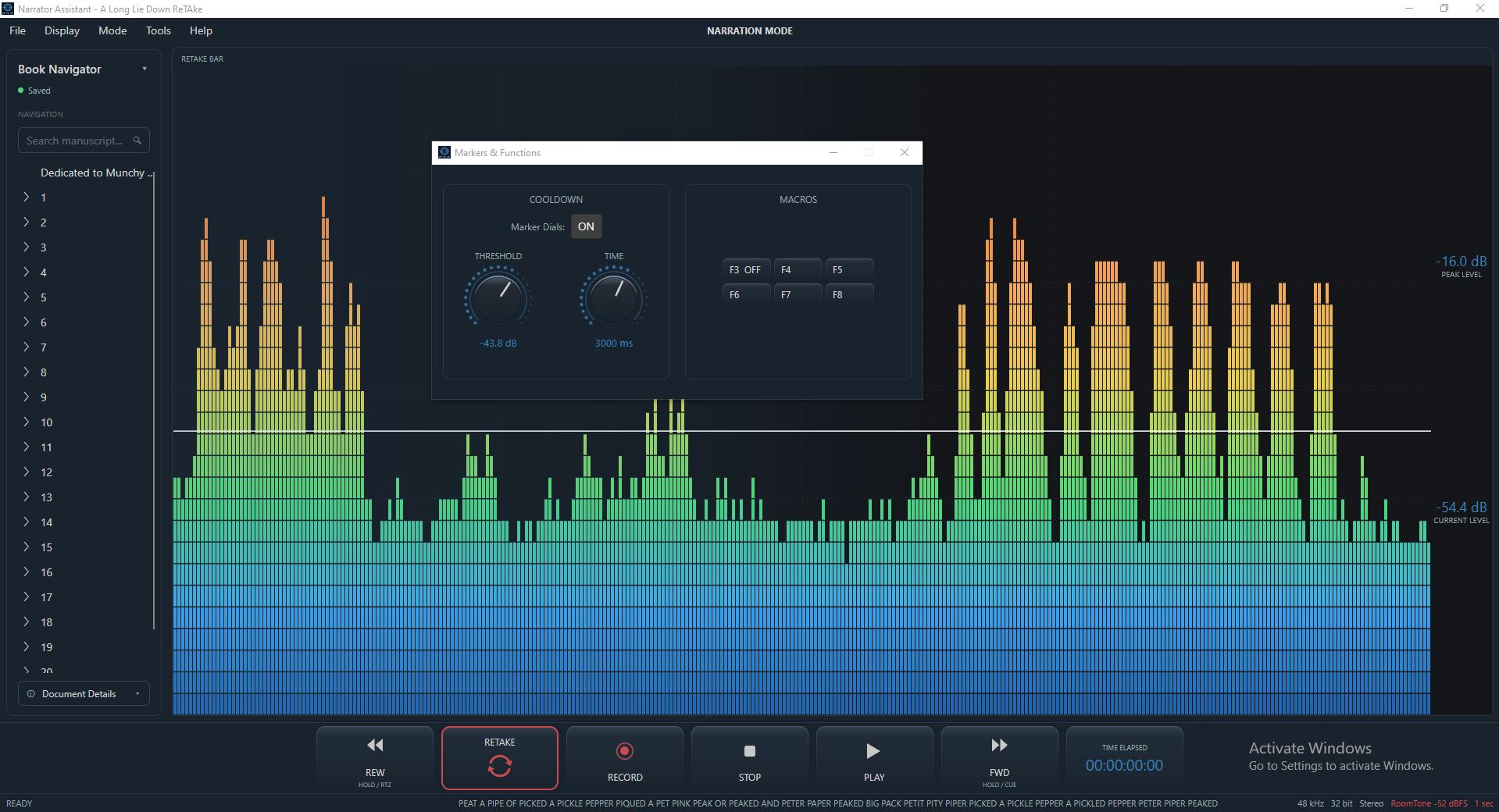
Macros can be used for various things inside ReTake. They can be triggered by setting a variable threshold against a variable time. What this means is, when the audio levels drop below a certain threshold it starts a timer, when the timer reaches the desired length, a marker is dropped on the timeline at the same time as when the threshold had first been crossed.
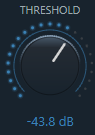
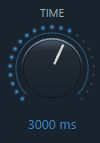
For example, a narrator is recording a script. The audio levels drop to below the set threshold, for example -43.8dB. The signal remains under the -43.8dB threshold for 3000ms (3 seconds). A marker is then automatically added. A pre-assigned macro can then be activated using that marker as the activation point. You could use this function, for example to use a punch and roll command for whenever the speech drops below a certain threshold for a certain amount of time. Or add a macro that can stop the recording after 5 seconds of silence. There are many possibilities. Let us know what you use the Cooldown function for.
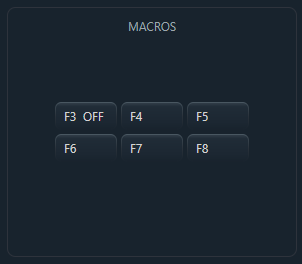
F3 - F8 are user assignable - you can create your own macros in Studio One/Pro and trigger them from ReTake. F3 is a toggle on/off function. F4 - F8 are all press and release functions. These can be automatically triggered by using the Cooldown feature which uses the Cooldown and Threshold dials. See further down for more details.
Opens (or hides) the Markers & Functions window — see [Chapter 14](#14-markers--functions).
How loud your voice needs to be before ReTake treats it as speech, rather than background noise. If NA seems to be ignoring quiet speech, or reacting to room noise, adjust Threshold.
How long a pause needs to last before NA treats it as a genuine stopping point, rather than a normal breath or mid-sentence pause.
Six quick-command buttons that send specific instructions to Studio One, similar to a footswitch or shortcut key on a control surface.
Threshold and Cooldown help ReTake's activity display and automatic marker behavior match your natural speaking style. F3–F8 gives you fast, one-click access to Studio One/Fender Studio Pro commands without leaving ReTake.
Error Highlight automatically detects potential mistakes by comparing the narrator’s speech with the script. Words that do not match the manuscript are automatically highlighted, making potential errors easy to spot and correct with ReTake.
—
The Status Bar provides information about what ReTake is currently doing and the current state of important functions.
It gives you immediate feedback about actions and system status, allowing you to understand what ReTake is doing without interrupting your workflow.
Use the Status Bar as a quick reference when checking whether an action has been recognised or whether a particular function is active.
The status bar also shows a scrolling live display of your actual recorded speech.
The Word Count tool provides a quick way to see how many words, sentences and paragraphs are contained in the current text document.
This can be useful when preparing or managing a narration project, particularly when estimating the amount of material to be recorded or checking the progress of a script.
It can also show where exactly the current word is located in the script
The Word Count is intended as a simple at-a-glance reference, so you can check the size of your script without opening another application or manually counting the text. A word count is also displayed in the Document Details panel located in the Navigation Panel,to the left of the screen.
——
—
The Level Meters provide a visual indication of the incoming recording level while you are working in ReTake.
They allow you to see the current audio level at a glance, helping you confirm that audio is being received and that the recording signal is active.
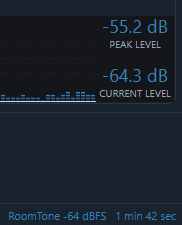
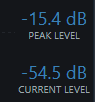
ReTake provides three level readings: Current Level, Peak Level and Room Tone. They help you confirm that your microphone is working, your voice is at a sensible recording level, and your signal is not approaching digital clipping. The meters are a recording-time guide only — they are not a substitute for checking finished audio during editing and mastering.
The meters are particularly useful during setup and recording because they provide immediate visual feedback without requiring you to switch to your DAW or another window.
shows the loudest points reached by your voice. Peaks should remain comfortably below 0 dBFS, because 0 dBFS is the maximum digital level and exceeding it causes clipping and distortion. As a practical guide, watch what happens during your loudest delivery rather than trying to make the meter reach the top.
For example, if normal speech is around -18 dB and an enthusiastic line reaches -8 dB, there is still useful headroom.
Room Tone measures the ambient sound level of your recording environment while you are silent. When the signal level fall below -48 dB for more than 1 second. ReTake establishes the room tone level. Narration Assistant continuously measures the microphone signal using RMS (average signal energy), converting the result to dBFS. The reading updates every 3 seconds, while the measurement continues to accumulate for as long as the silence lasts. For example, after 30 seconds of continuous silence, the displayed value represents the RMS level of the entire 30-second period — not an average of separate dB readings.
The -60 dB figure should be treated as a useful reference, not a target that the recording meter guarantees. For example, ACX's requirement is based on measurements of the finished audio, and professional mastering can affect the final levels. Always check the completed recording during the editing/mastering process if you need to meet a specific publisher or platform specification
As a simple way to read the meters:
Remember: the Level Meters are designed to help you make good recording decisions quickly. They are not a mastering or certification tool. For final audiobook delivery, measure the completed audio against the requirements of the publisher or platform you are submitting to.
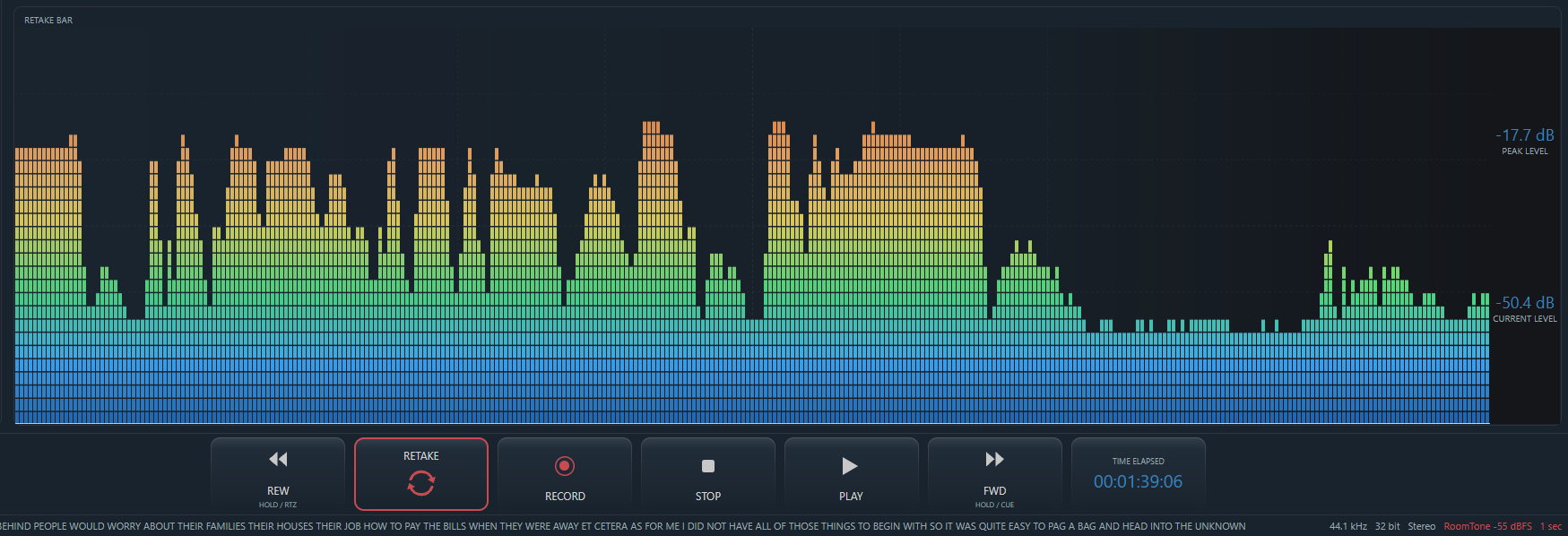
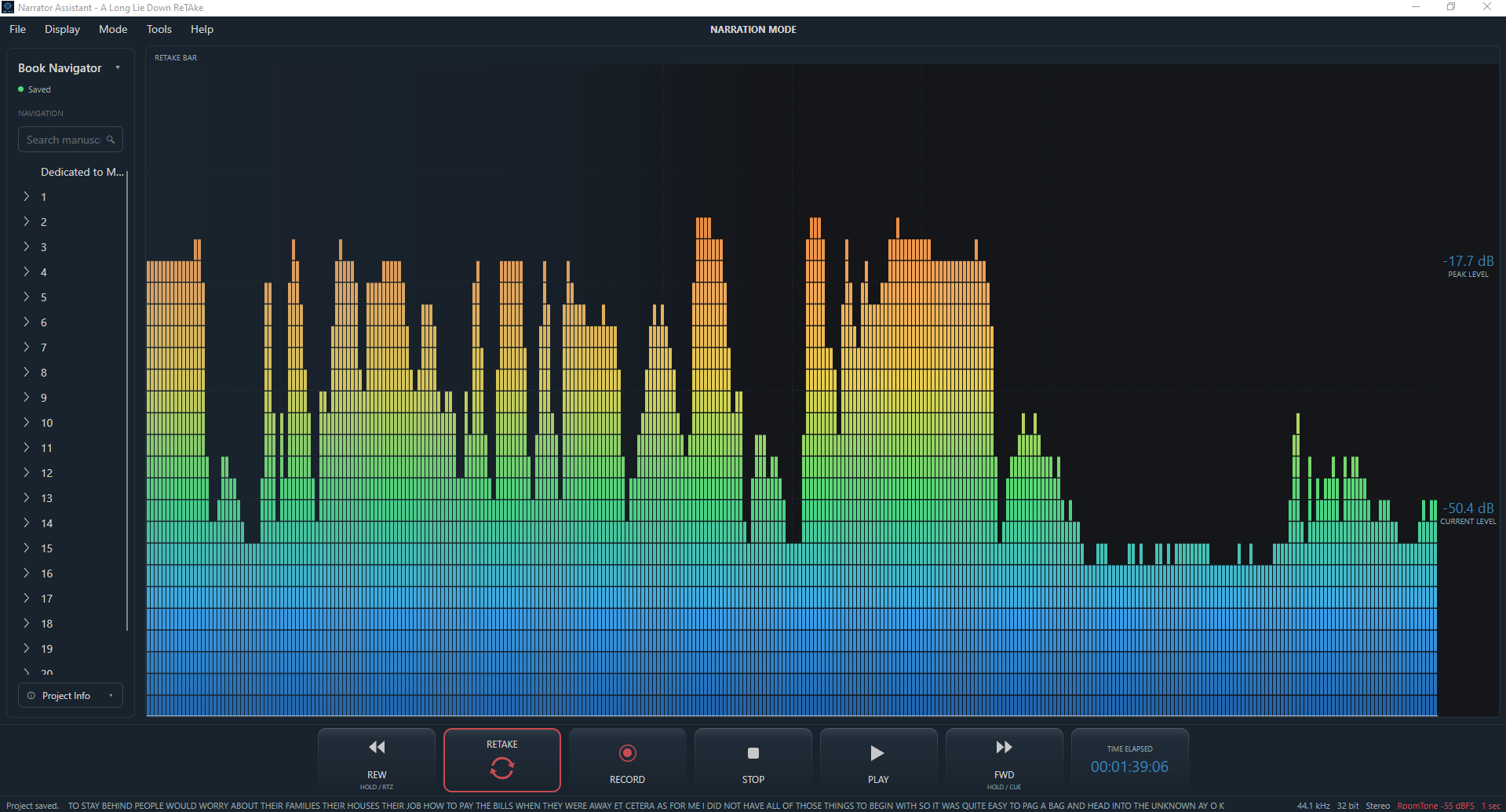
The Retake Bar is the vertical meter showing your microphone level as you speak (quiet at the bottom, loud at the top). ReTake provides three level readings: Current Level and Peak Level on the meter, plus Room Tone in the status bar.
• PEAK LEVEL — the loudest level detected.
• CURRENT LEVEL — the live, real-time input level right now.
A thin white line across the meter shows your current Threshold setting, and a soft shaded region shows your current Cooldown setting — both explained in the Markers & Functions section.
Tip: if a level reading ever looks stuck on an old number, double-click directly on that number to reset it. It will pick up a fresh reading when new audio comes in.
You'll typically start in Annotation Mode to prepare a chapter or full script, switch to Narration Mode to record it. Maybe switch back to Annotation Mode to prepare the next chapter, depending on your workflow— going back and forth as often as you like.
Switching modes is seamless — everything about your current project comes with you automatically, no need for extra software;
Nothing. You never need to re-import your script, re-add a character, or redo an annotation just because you switched modes. Everything is exactly where you left it.
—
—
Drag and drop your script file onto the ReTake window or use File → Import Document...,
In Annotation Mode's Character panel, click New Character for each character in your book, and fill in their Voice/Accent/Sounds Like/Pace/Tone/Notes.
Drag and drop annotations directly onto the script, select text in your script and apply annotations from the Toolbox, add notes and record audio notes into the margin. Choose highlights, pauses, pronunciation reminders, and anything else you want to remember before you record.
File → Save Project (or Ctrl+S) — do this regularly as you work.
Use the mode-switch option in the menu to move to Narration Mode when you're ready to record. Everything comes with you.
Use Studio One's normal recording setup, then use ReTake's Record button (or Studio One directly) to start.
Turn VOICE FOLLOW on in the Word Offset panel so your script highlights and scrolls automatically as you read.
Press the ReTake button to repeat a sentence, or double-click the word you want to redo. ReTake handles the rest.
Open a character's card before you start a scene with dialogue, so their voice notes stay visible while you narrate.
Fill in Client/Book/Author/Deadline details once, early on — they're available from either mode whenever you need them.
Switch back at any time to add characters, notes, or import the next chapter — then switch to Narration Mode again when you're ready to record it.
—
ReTake won't start.
→ Make sure no other copy of ReTake is already running in the background, then try again.
Narration Mode takes a while to open, especially right after switching from Annotation Mode.
→ This is expected. Narration Mode sets up speech recognition and connects to Studio One each time it opens, which takes a few moments. This is normal, not a fault.
Voice Follow isn't highlighting anything.
→ Check that the VOICE FOLLOW button is turned ON in the Word Offset panel. Also check that your microphone is connected and set as your default recording device in Windows.
Studio One isn't responding to ReTake's commands.
→ Make sure Studio One is open and that ReTake's connection to it has had a moment to establish (this happens automatically when Narration Mode opens). If it's still not working, try restarting ReTake in Narration Mode.
A Character Card isn't appearing.
→ Make sure the CARDS button is turned ON. If you closed a card manually, turn CARDS off and back on again to bring it back.
My project won't save.
→ Make sure you have permission to write to the folder you chose, and that there's enough free space on your drive.
My project won't open.
→ Double-check you're opening a genuine .nap project file. If the file appears damaged, try opening a recent backup if you have one.
Some annotations seem to be missing after reopening a project.
→ This can happen if the script was re-imported as a new import rather than reopening the same project — annotations are tied to the exact script they were created on. Always reopen your existing project rather than re-importing the script from scratch.
Recording isn't capturing any audio.
→ Check your microphone connection and Windows' default recording device. Also make sure no other application has exclusive control of your microphone.
A ReTake isn't working.
→ ReTake only works while Studio One is actively recording, and only once ReTake has recognized at least a little of what you've said. If you double-click before recording starts, or right at the very beginning of a take before you've spoken, nothing will happen — this is expected. Start speaking, then try again.
The screen looks visually wrong (odd colors, missing text, etc.).
→ Try switching your Display preset to Studio to reset to ReTake's default look, then reapply your preferred preset if the problem doesn't reoccur.
—
Do I need Studio One to use NA?
For recording and ReTake , yes — Narration Mode is designed to work alongside Studio One. Annotation Mode (preparing your script, characters, and notes) doesn't require Studio One to be open.
Can I use ReTake without importing a script?
Yes. You can create a project and add characters and project details without ever importing a script, and save it normally.
Will switching modes lose any of my work?
No. Everything about your project — script, characters, annotations, project info — carries over automatically every time you switch modes.
What happens if I delete a display preset I'm currently using?
ReTake automatically falls back to the Studio display. Nothing breaks.
Does turning a Word Offset panel button OFF disable the feature?
No. All five buttons (TIME, VOICE FOLLOW, CARDS, PROJECT INFO, MARKERS & FUNCTIONS) only control what's currently shown on screen — the underlying feature keeps working regardless.
Is my voice recording sent anywhere over the internet?
No. Voice Follow's speech recognition runs entirely on your own computer.
Can I have multiple characters' cards open at once?
Yes — open as many as you like, and use the CARDS button to show or hide all of them together at any time.
What's the difference between Project Info and General Notes?
Project Info (Client, Book, Author, etc.) belongs to one specific project. General Notes is a single, separate notepad shared across every project you open.
Can I undo a mistake?
Undo/Redo is available for bulk selection/delete actions in the Annotation Index. For most other changes, save your project regularly so you always have a recent version to fall back on.
—
Starting out
Action | Where |
Create a new project | File → New Project |
Open a project | File → Open Project... |
Import a script | File → Import Document... (or drag and drop) |
Save | File → Save Project (Ctrl+S) |
Narration Mode — Word Offset panel buttons
Button | Shows/hides |
TIME | Project time display |
VOICE FOLLOW | Live scripthighlight/scroll |
CARDS | All Character Cards |
PROJECT INFO | The Project Info window |
MARKERS & FUNCTIONS | The Markers & Functions window |
Doing a ReTake
To ReTake | Do this |
A word | Double-click that word while Studio One is recording |
A sentence | Double-click anywhere in that sentence |
A paragraph | Double-click anywhere in that paragraph (if ReTake Paragraph is on) |
Transport
Button | Effect |
Play | Start playback |
Stop | Stop playback/recording |
Record | Start recording |
Rewind / Forward | Move the playhead back/forward |
Where things live
Information | Found in |
Characters | Annotation Mode's Character panel; Character Cards in both modes |
Project details | Project panel (Annotation Mode) or Project Info window (either mode) |
Notes not tied to one project | General Notes (Tools menu, either mode) |
scriptdisplay look | Display menu → Studio / Daytime / your presets / Format... |
—
Narration Assistant — User Manual |