ANNOTATION MODE
Prepare your performance
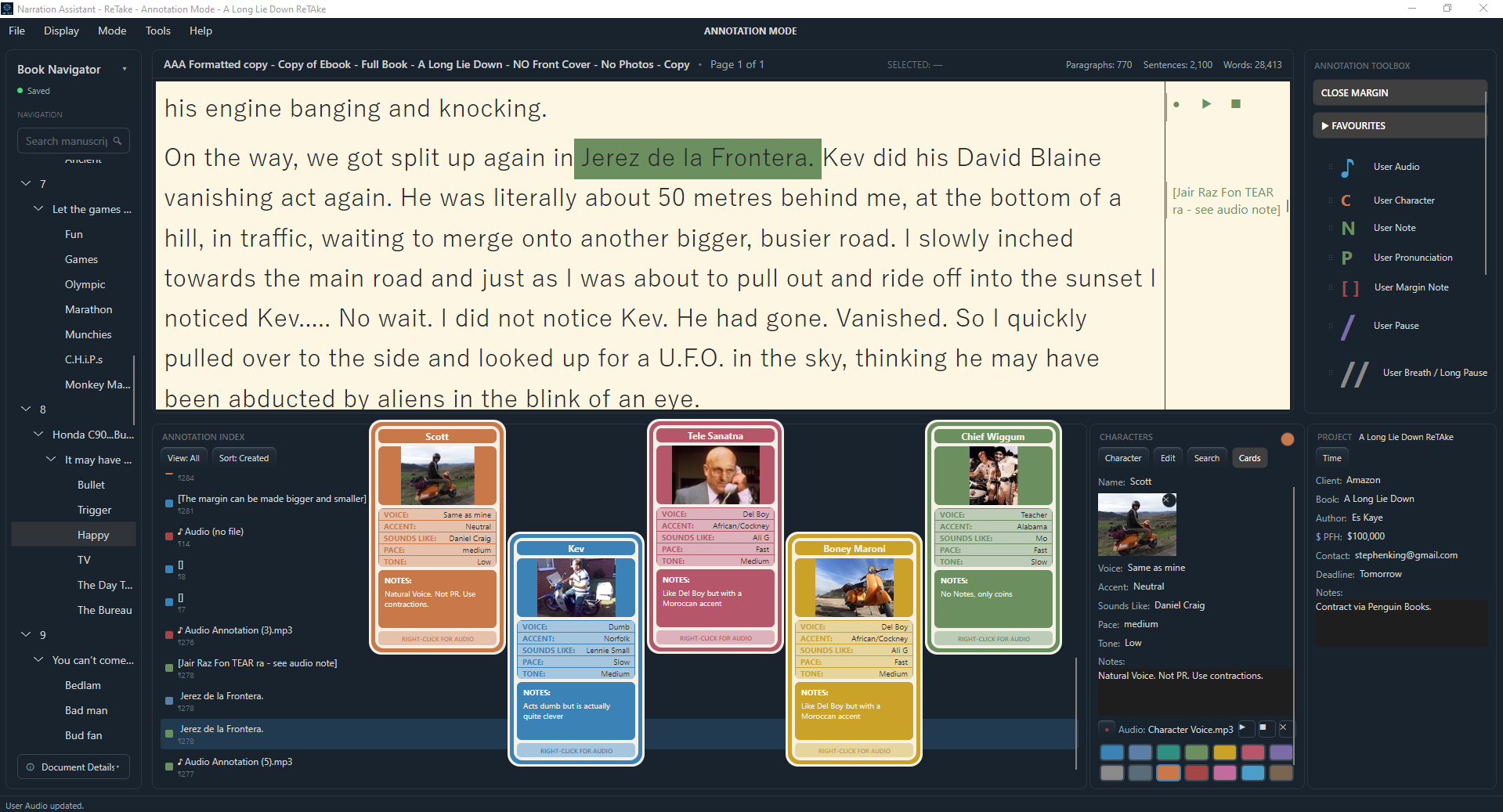
Annotation Mode is where the manuscript can be read and prepared before it's recorded. It's not just for narrators and voice-over artists either. Rights holders, editors, collaborators can all work directly with and share the same script and performance notes, annotations, audio and written notes, and directions. The original script remains untouched. This can be extremely useful if the rights holder wants a certain word or phrase to be pronounced in a specific way, or if the editor wants to mark a section for a retake. The narrator can then open the shared project and locate the exact word or phrase in the manuscript and the DAW and start recording straight away, without the need for laborious searching.
ANNOTATE THE SCRIPT
Mark up the words that matter
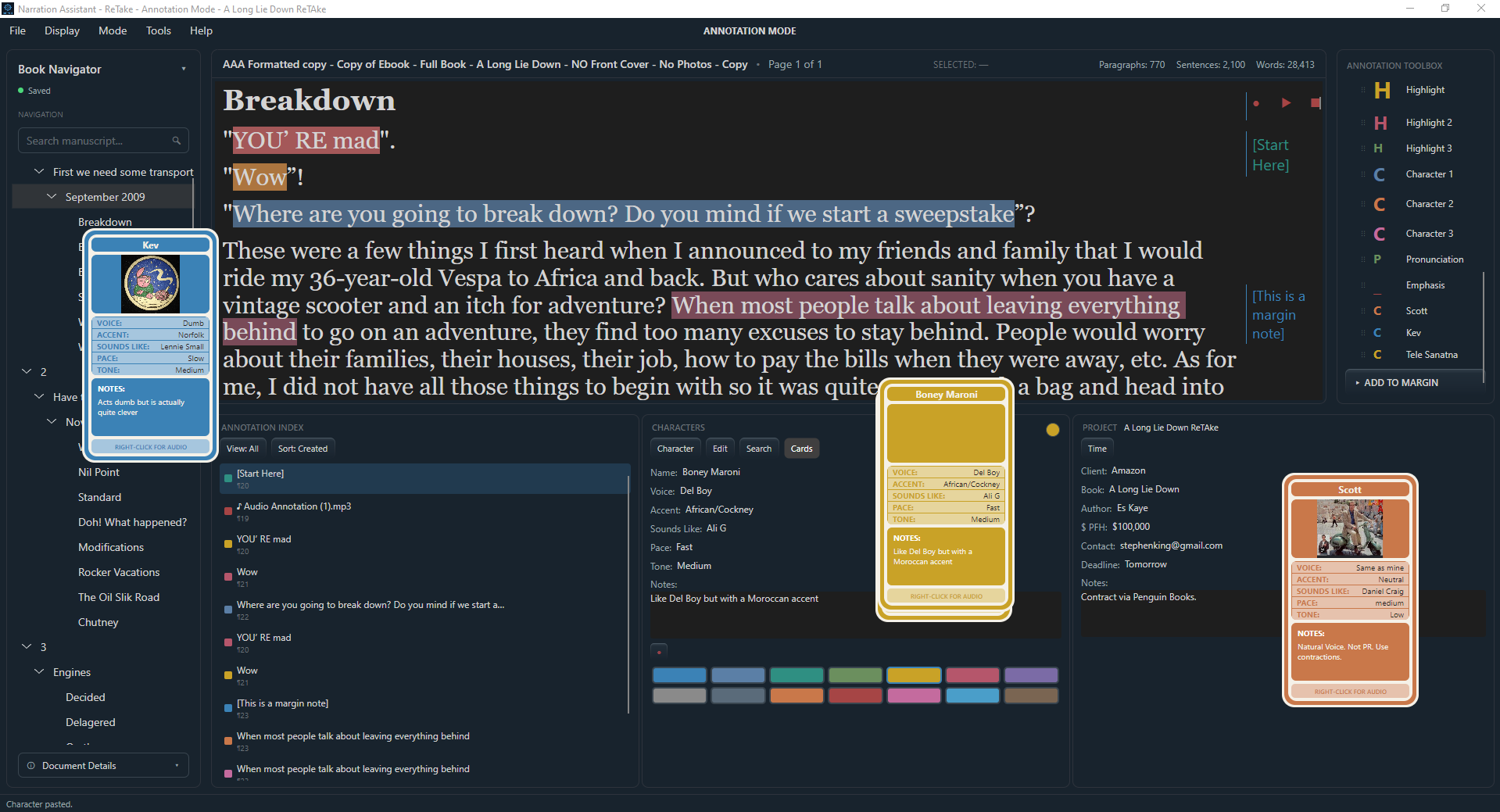
The Annotation Toolbox covers the usual mark ups a script needs — pauses, breaths, emphasis, directions, plain notes and you can save your own combinations as favourites, so the annotations you reach for most are the ones closest to hand. Every annotation can be edited, you can even create your own, and every one is logged in the Annotation Index, so finding a note you made last week is as direct as finding a word in the text.
Audio annotations work the same way; record a short clip against a specific point in the script, for pronunciation or a performance idea you'd rather hear than read back. Simply drag the audio annotation into the margin and hit the record button.
Your annotations stay with the project as you move into Narration Mode, keeping your notes and performance cues available in the same location as you narrate.
CHARACTERS
Build the performance before you record it
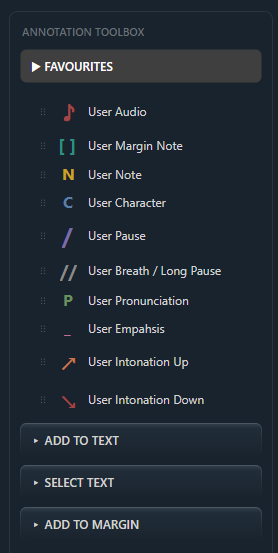
For those that like to use character references, you can create character cards that hold all the information you need for each individual character: colour coding so you can tell characters apart in the text at a glance, custom fields for whatever details matter to you, free-form notes, an image if you want one, and a recorded or imported audio reference for the voice itself. Simply hit record and create your own audio sample. When you create a card you also automatically create an annotation shortcut of the same name and colour, which can then be used to highlight the text. Position them anywhere on the screen. Show or hide them as needed.
Character Cards keep all your character information close while you narrate, giving you a quick reference to each character's voice and style throughout your performance, so switching between characters doesn't mean stopping to look something up.
There's no need for another window just for your notes.
YOUR WORKSPACE
Make the manuscript work for you
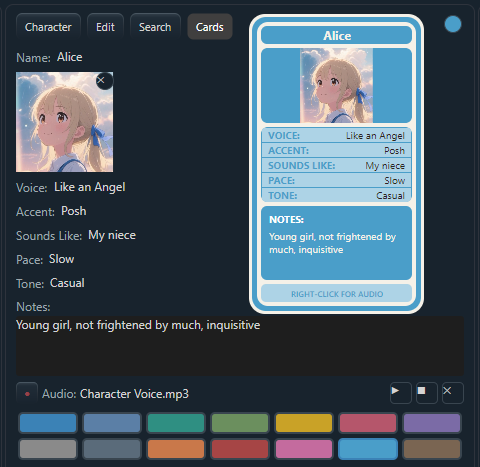
ReTake lets you shape the workspace around the way you work. Studio and Daytime presets cover the basics such as font, size, colour, brightness and the margin, panels and visible features can all be resized or toggled on or off independently, so the workspace you end up with reflects how you actually like to read, not a fixed layout.