NARRATION MODE
Everything you need, right where you need it
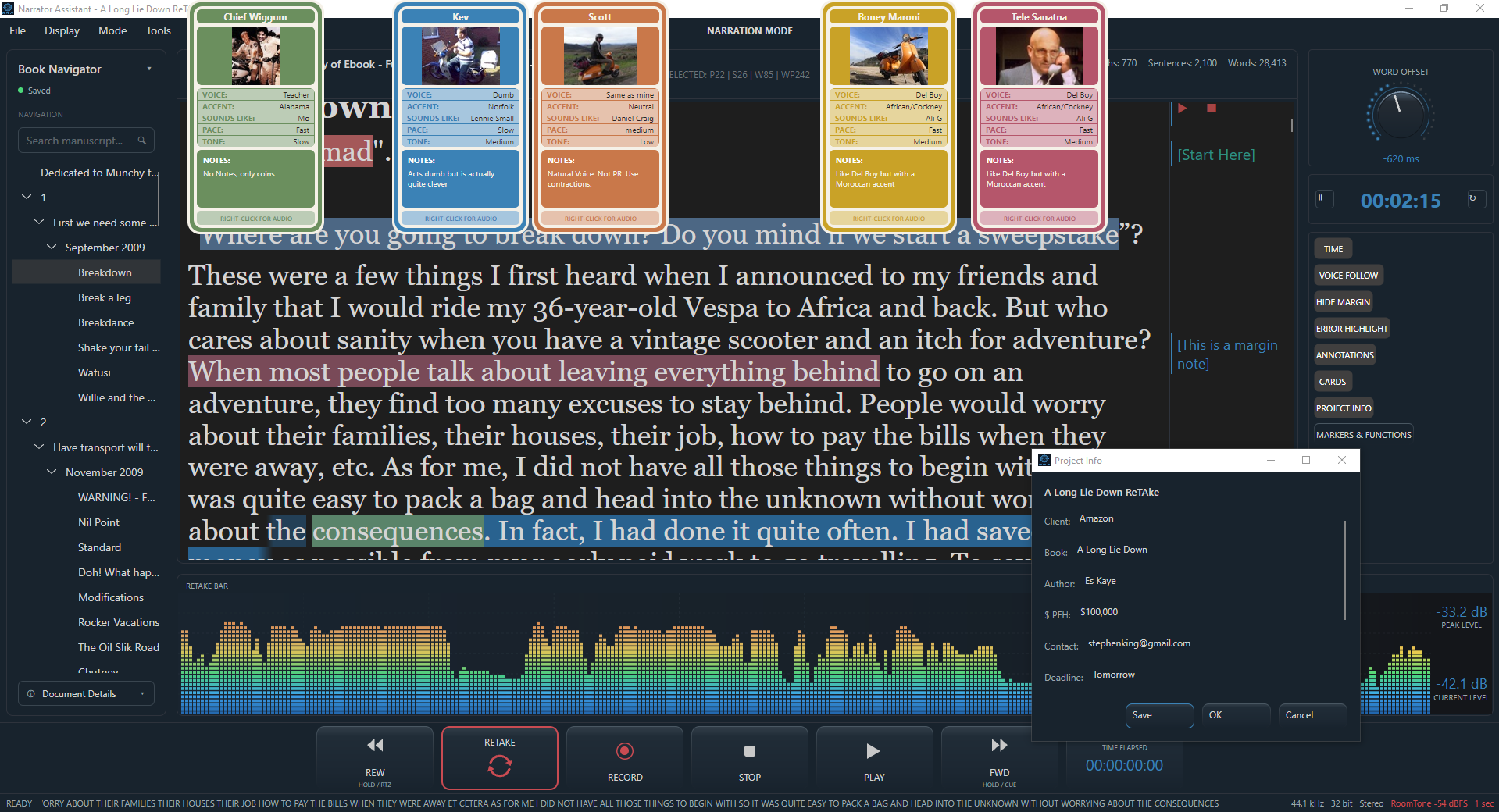
Narration Mode is where you perform. This is the heart of Narration Assistant ReTake. Everything you prepared: the manuscript, annotations, notes and character information comes together in the narration workspace, while your DAW remains responsible for the actual recording. Or you can use it directly without any preparation, just load your script here and start recording straight away.
THE PERFORMANCE WORKSPACE
Perform without leaving the script
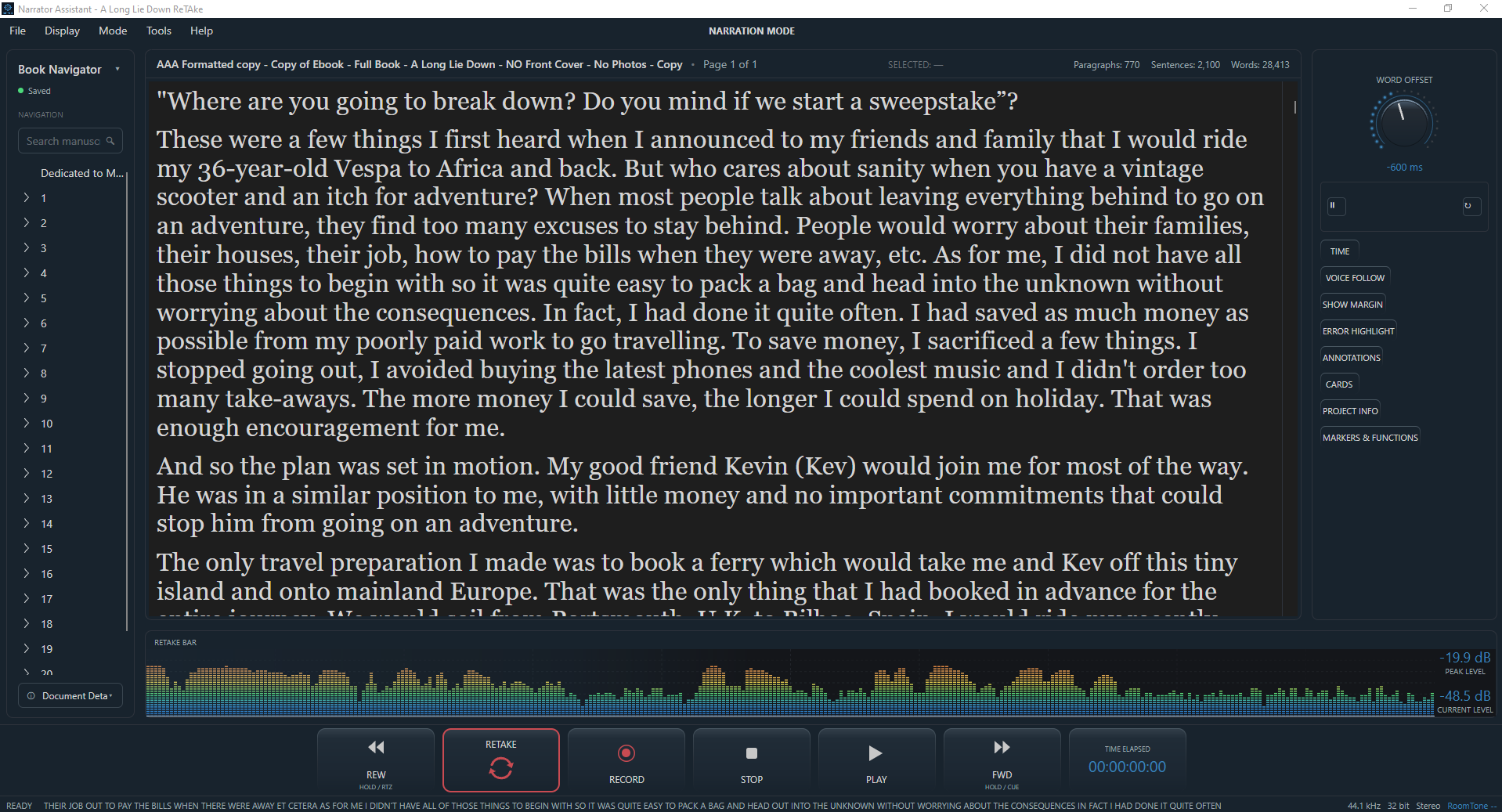
Your manuscript remains the centre of the workspace, as it always should, with complete control over what you see while you narrate. Just like Annotation Mode, keep your annotations, notes, character cards and other display features visible when you need them, or turn them off when you want a clean, distraction-free view of the script.
Every display feature can be switched on or off to suit the way you work. Your DAW still remains the recording engine, but the controls you need for recording are available from within the Narration Mode window, so you're never forced to leave the manuscript just to start, stop or control the recording. The aim is simple: fewer interruptions, less time managing the tools around the performance and more screen space for the manuscript.
RETAKE
When something goes wrong, keep going
Mistakes happen during narration. ReTake lets you recover quickly without breaking the recording workflow and without fumbling for the mouse. The ReTake button returns the DAW location to the beginning of the current sentence, and double-clicking a word starts a word ReTake, with a word offset dial to fine-tune exactly where the take begins.
Less interruption. Less searching. Less lost time. Back into the performance.
STAY IN THE PERFORMANCE
Keep the story moving
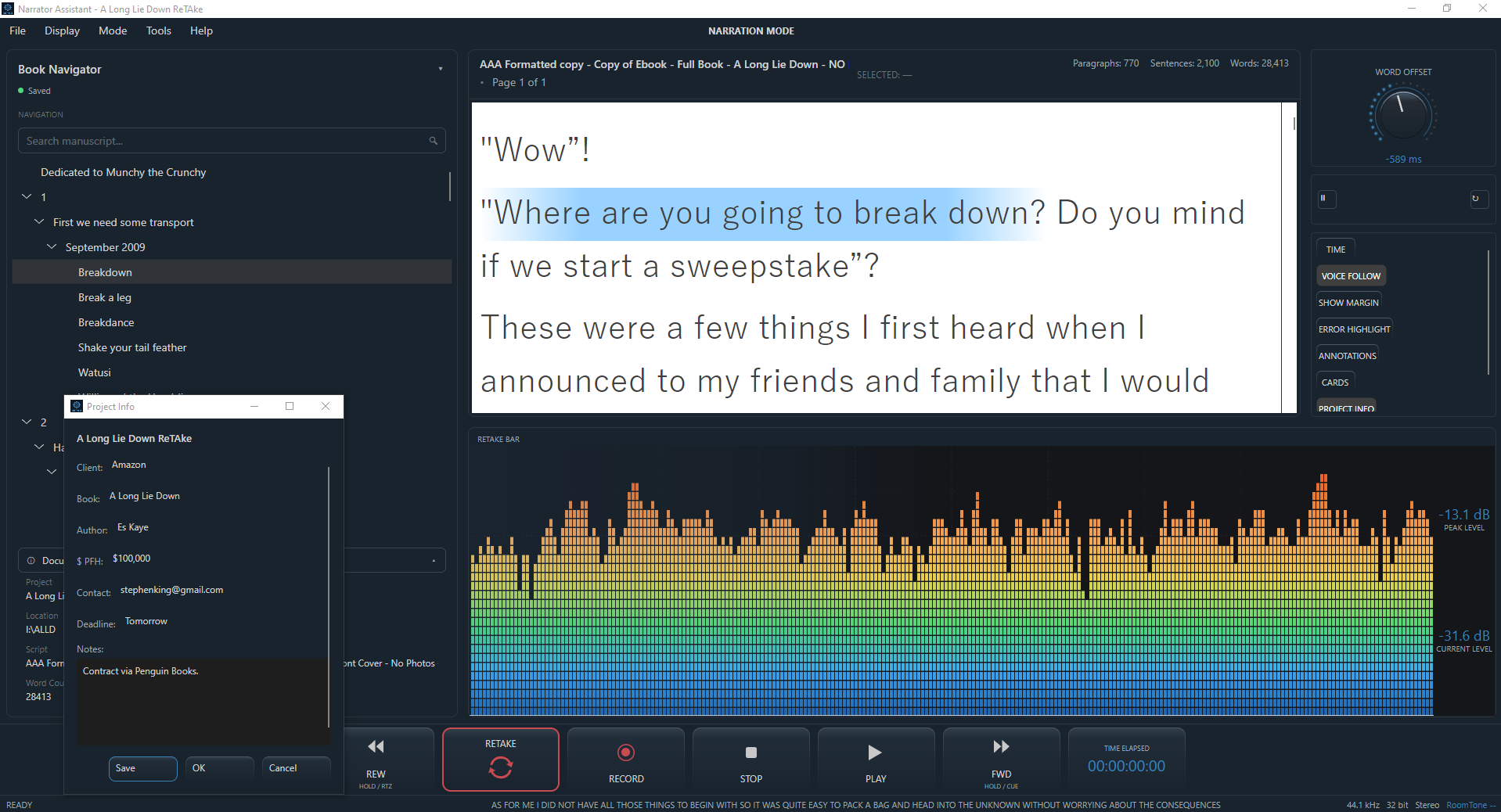
Voice Follow keeps the manuscript moving with you, the script remains almost full screen while you record, and ReTake provides a fast recovery whenever something goes wrong. Character cards keep character information readily available, and recording controls stay accessible without ever taking you away from the manuscript.
Voice Follow is ReTake’s own autocue or prompter. It automatically highlights and scrolls through the manuscript as you narrate, slowing down or speeding up, keeping in time with your voice rather than a fixed scroll rate. If you stop speaking, Voice Follow stops too. If you prefer, you can turn off this feature with the touch of a button.
The workflow is designed to keep the narrator focused on the words, the story and the performance. From the first line to the final take, that's the job Narration Mode is built to do.